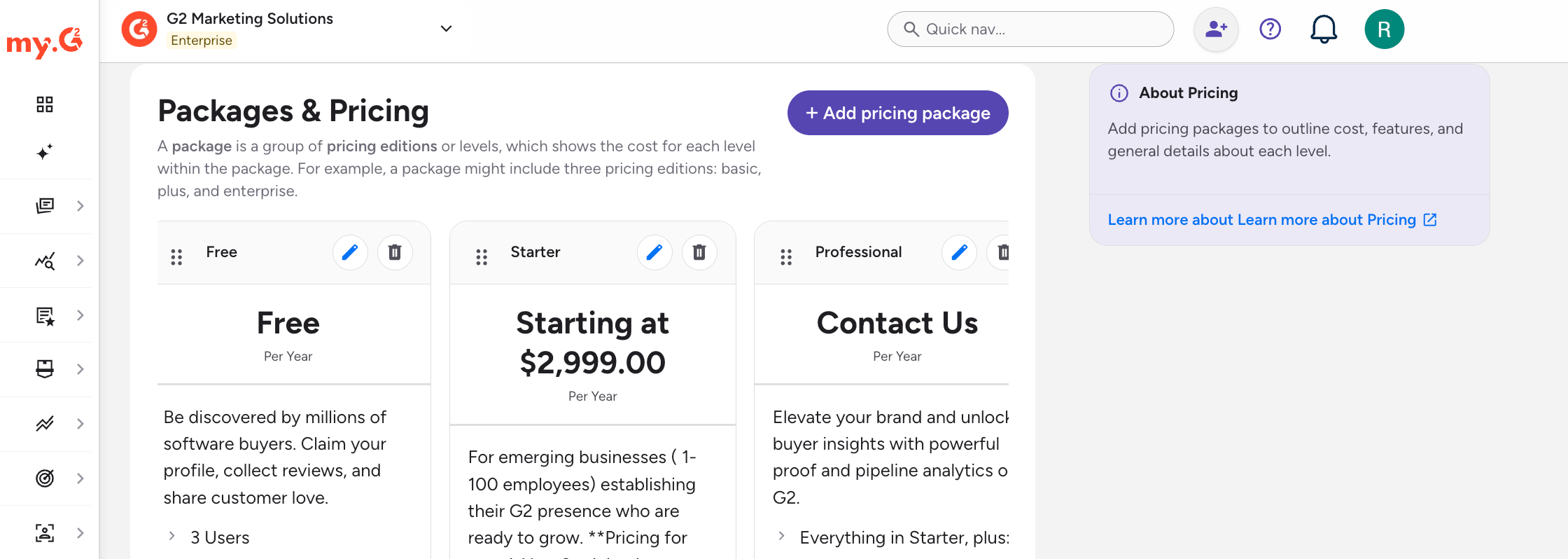
The Packages & Pricing tab enables you to provide in-depth and transparent information related to your product's packages, pricing, and free trials.
Basics of Packages & Pricing
Where pricing information appears on your profile
Packages and pricing information appears on your product's listings on G2, Capterra, Software Advice, and GetApp. On G2, buyers select Pricing on your product profile.
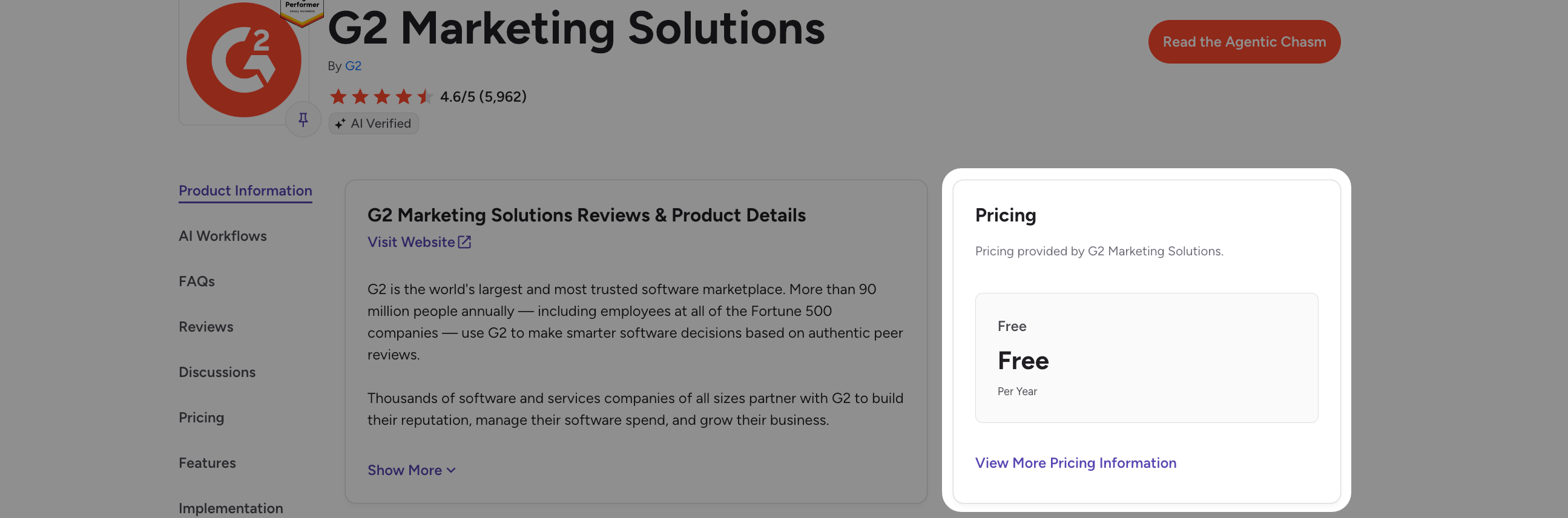
If you choose not to provide packaging or pricing details, buyers will see a message stating that this information has not been provided on the Pricing page of your product profile.

Managing your pricing information in my.G2
1. (Optional) Add your pricing details
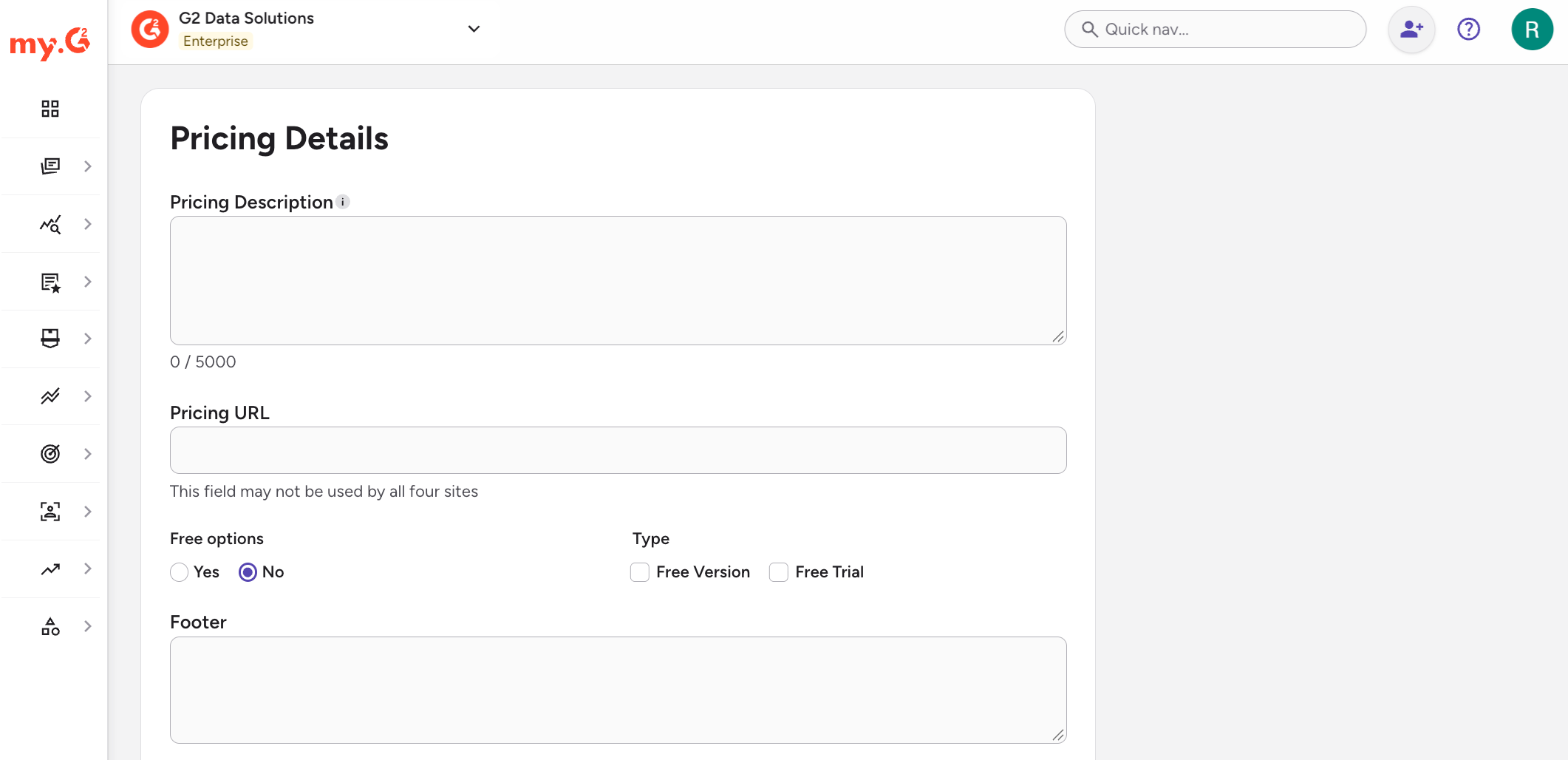
To add pricing details:
-
Go to my.G2, then select Listings > Manage Listings > Cross-Marketplaces > Packages & Pricing.
-
In the Pricing Details section, enter your Pricing Description and Footer.
-
Under Free options, select Yes or No to indicate whether you offer a free version or free trial. Under Type, select Free Version, Free Trial, or both.
-
In the Complete Pricing List section, upload your complete pricing list.
The pricing list must be a PDF file that is smaller than 5MB.

2. Add your pricing packages
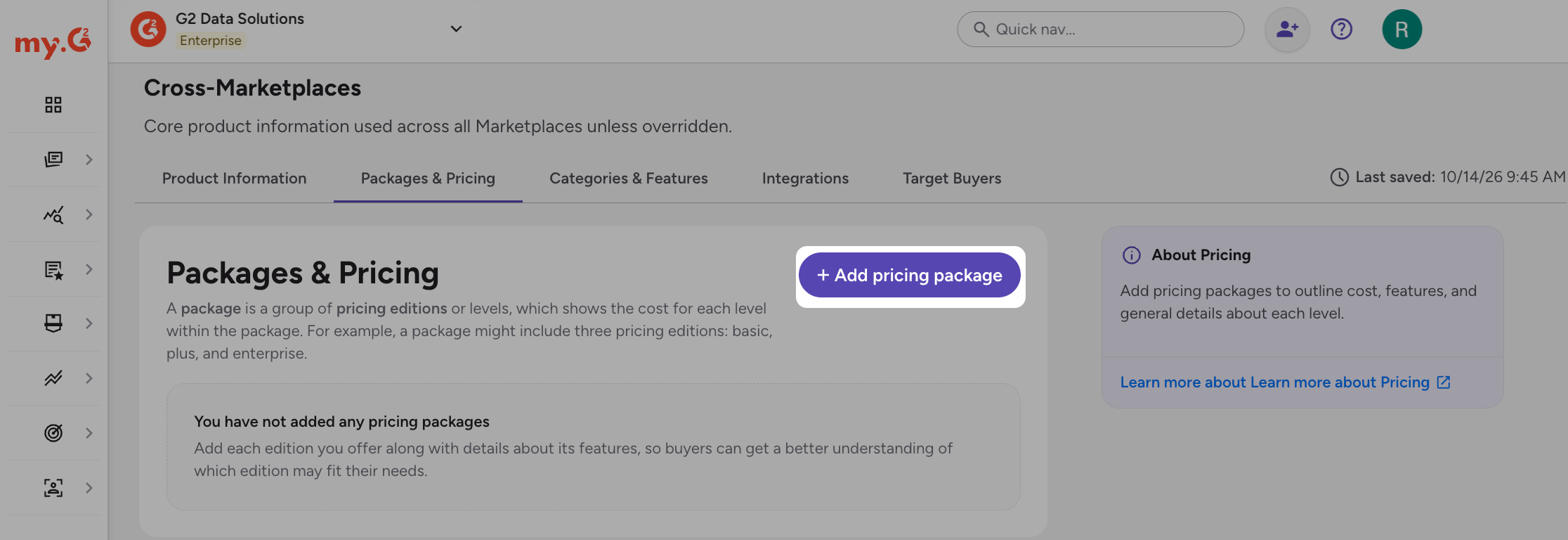
To add pricing information:
-
Go to my.G2, then select Listings > Manage Listings > Cross-Marketplaces > Packages & Pricing.
-
Select + Add pricing package.
-
On the Add a Pricing Edition page, enter the Edition Name and optionally add an Edition Description.
-
In the Billing Information section, answer the questions that apply to your edition.
The following table includes a description for each question in the Billing Information section.
Pricing edition question Description Do you offer the edition by a unit such as a user, seat, or license? Select Yes or No to indicate if your offering is available in units like a user, seat, or license. What is the name of the unit you bill by? Provide a measurable term used for billing purposes. How many of this unit (users, seats, etc.) has access to your product with a purchase? Provide an exact number of units that gain access to the product when purchased. How often do you bill for your product? (Optional) Select the expected payment cadence for the pricing edition. -
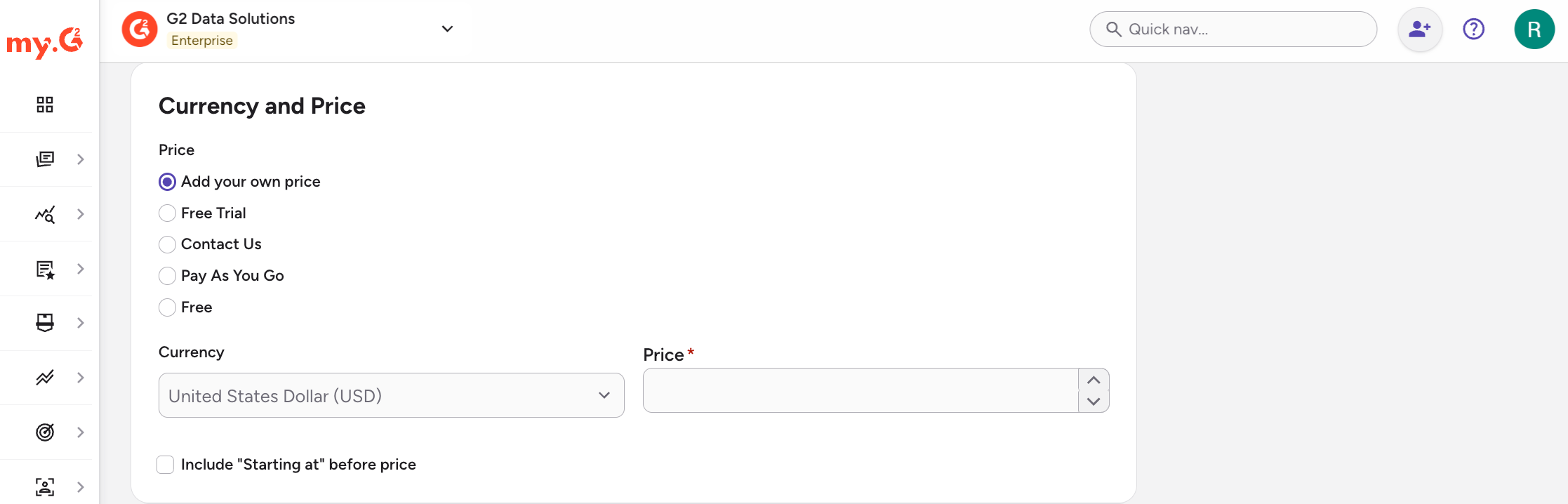
In the Currency and Price section, select a price option. If you select Add your own price, select a Currency and enter the Price. To show "Starting at" before the price, select Include "Starting at" before price.
-
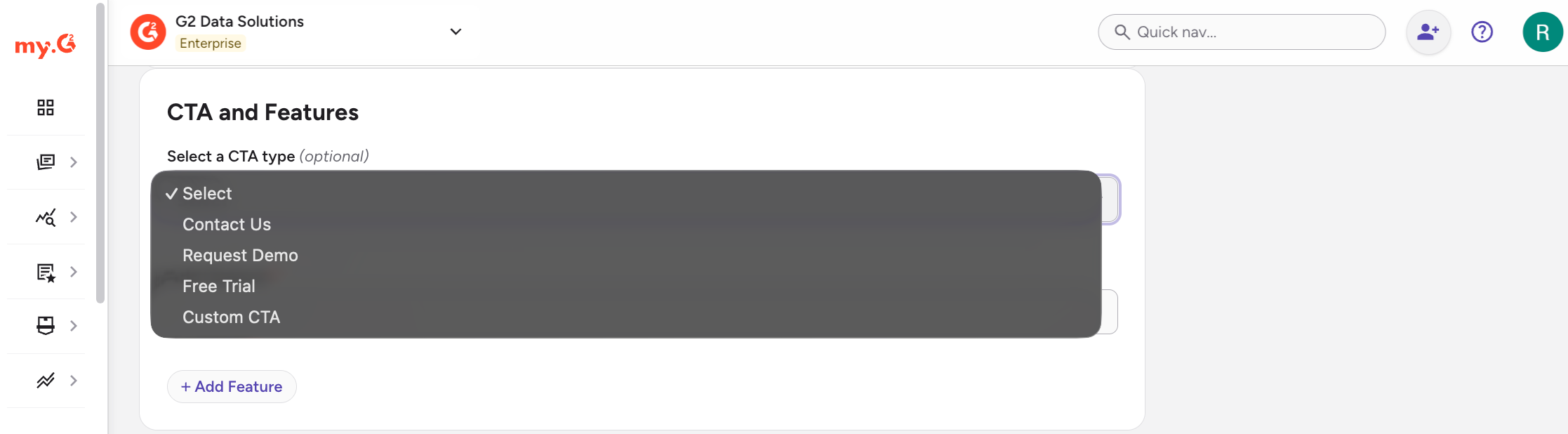
(Optional) In the CTA and Features section, select an option from the Select a CTA type dropdown to choose which CTA type appears with the pricing edition.
-
Enter a package-specific feature in the Add Feature field. To add more features, select + Add Feature.
G2 recommends standardizing your pricing structure for all packages so buyers can easily compare all options.
3. Edit or delete a pricing edition

To edit a pricing edition:
- Go to my.G2, then select Listings > Manage Listings > Cross-Marketplaces > Packages & Pricing.
- On the pricing edition you want to change, select the pencil icon.
- Update the edition details.
To delete a pricing edition:
- Go to my.G2, then select Listings > Manage Listings > Cross-Marketplaces > Packages & Pricing.
- On the pricing edition you want to remove, select the trash icon.
4. Arrange your pricing editions
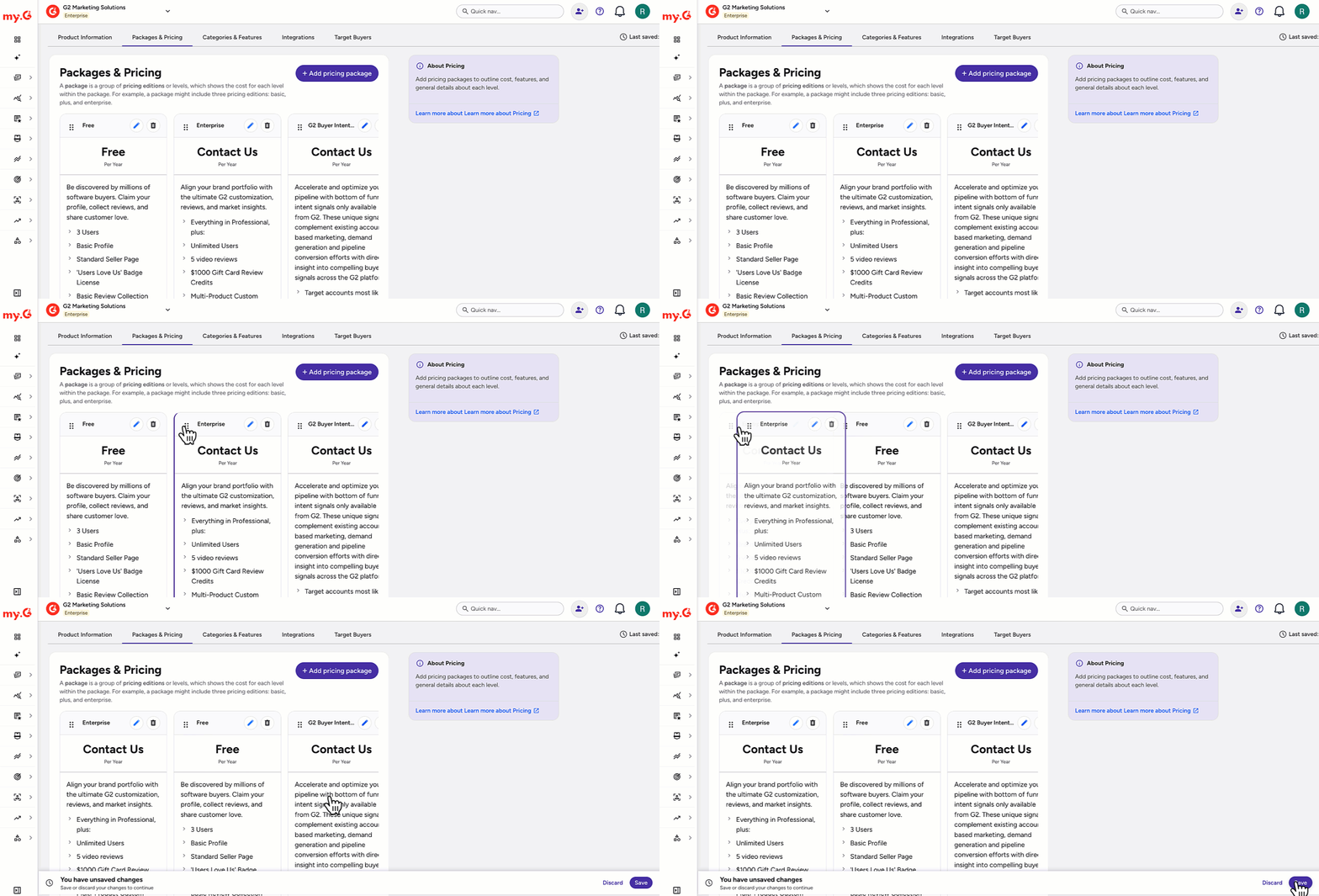
You can use the drag handles to rearrange the order pricing editions appear.