Screenshots enable you to upload images that highlight your product's features and user experience for buyers.
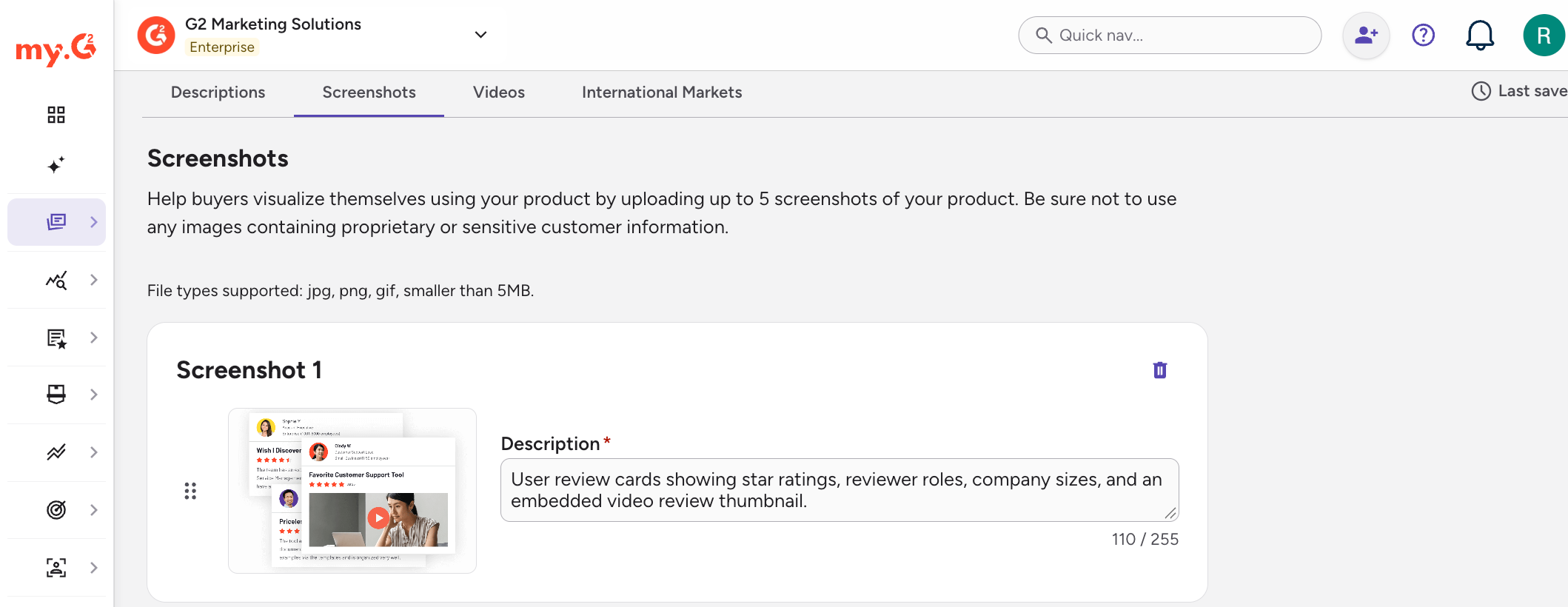
Managing screenshots on your profile
G2
To update the screenshots on your G2 profile, go to my.G2, then select Listings > Manage Listings > Edit in G2.com. In the editor, select Upload in the Media Gallery section.
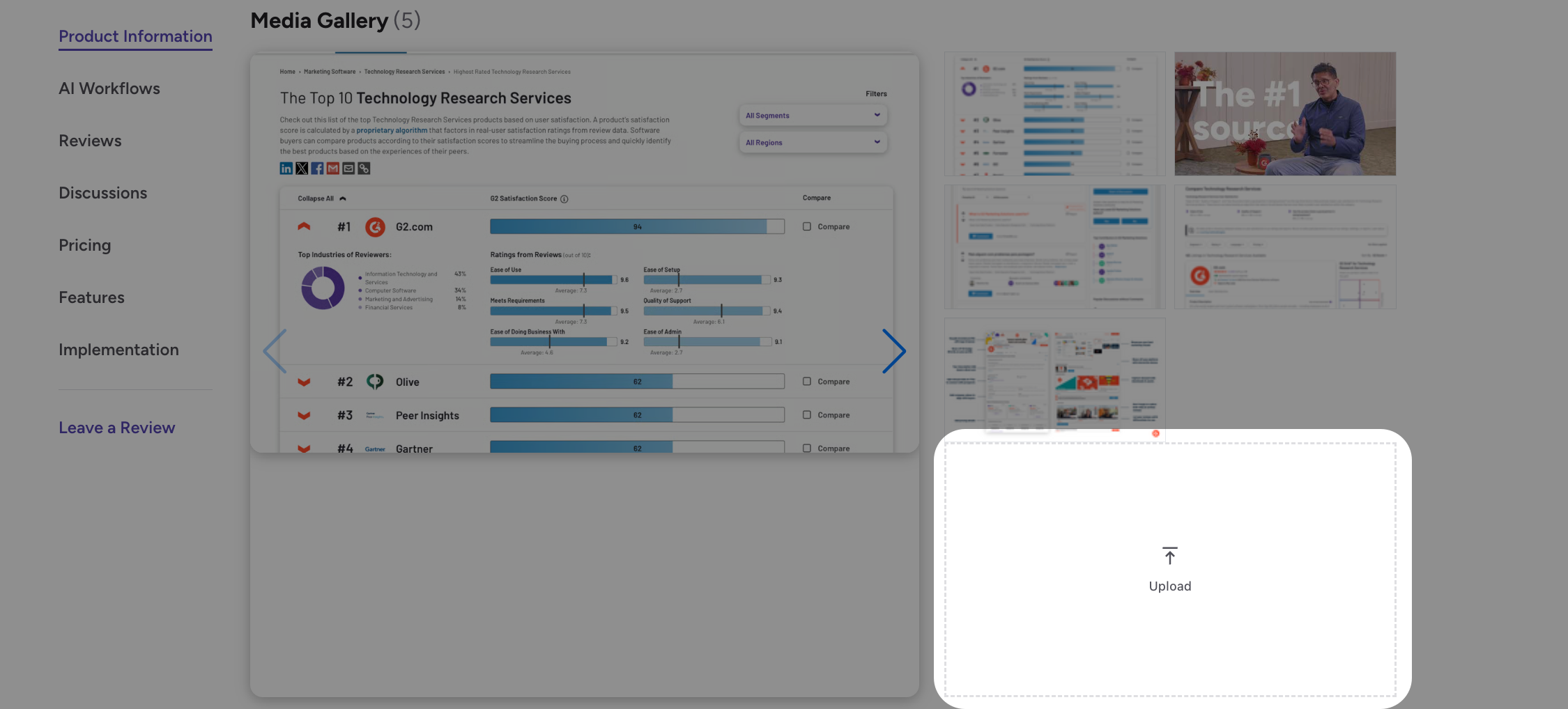
For more information about updating your G2 profile, refer to G2 in the Product Information article.
Capterra, Software Advice, and GetApp
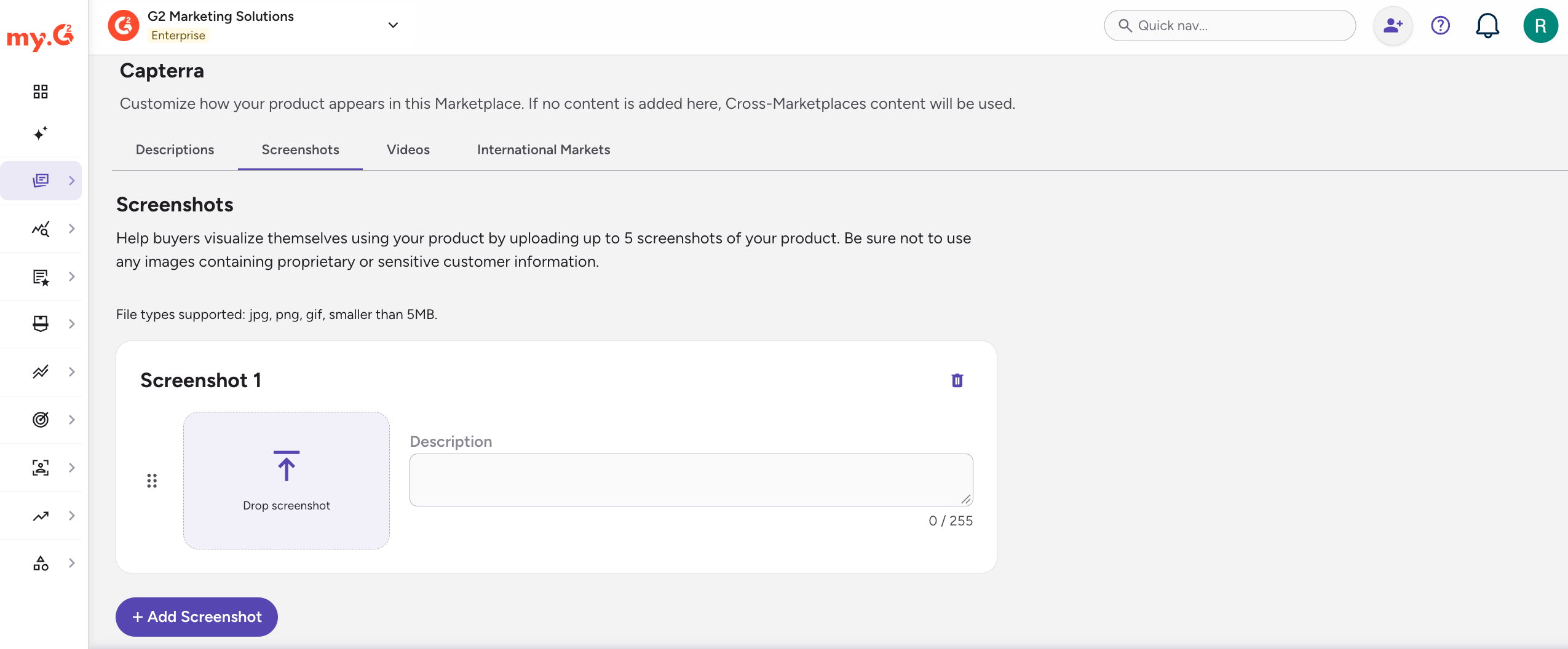
You manage screenshots separately for Capterra, Software Advice, and GetApp. The steps are the same for all three marketplaces.
To add screenshots to a Capterra, Software Advice, or GetApp listing:
- Go to my.G2, then select Listings > Manage Listings.
- Select Capterra, GetApp, or Software Advice, then select the Screenshots tab.
- Select + Add Screenshot.
- Choose a supported image from your local machine.
- Enter a Description for the image. This information is available to buyers when they open your screenshots.
You can upload up to five screenshots. Each image must be smaller than 5MB and be one of the following support file types: JPG, PNG, or GIF.
If you upload an animated GIF, buyers can only see the animated version when they open the file.
Do not upload images that include proprietary product details or sensitive customer information. Your organization is responsible for any inappropriate screenshots that are featured in your product profile.
You can use the drag handles to rearrange the order screenshots appear.
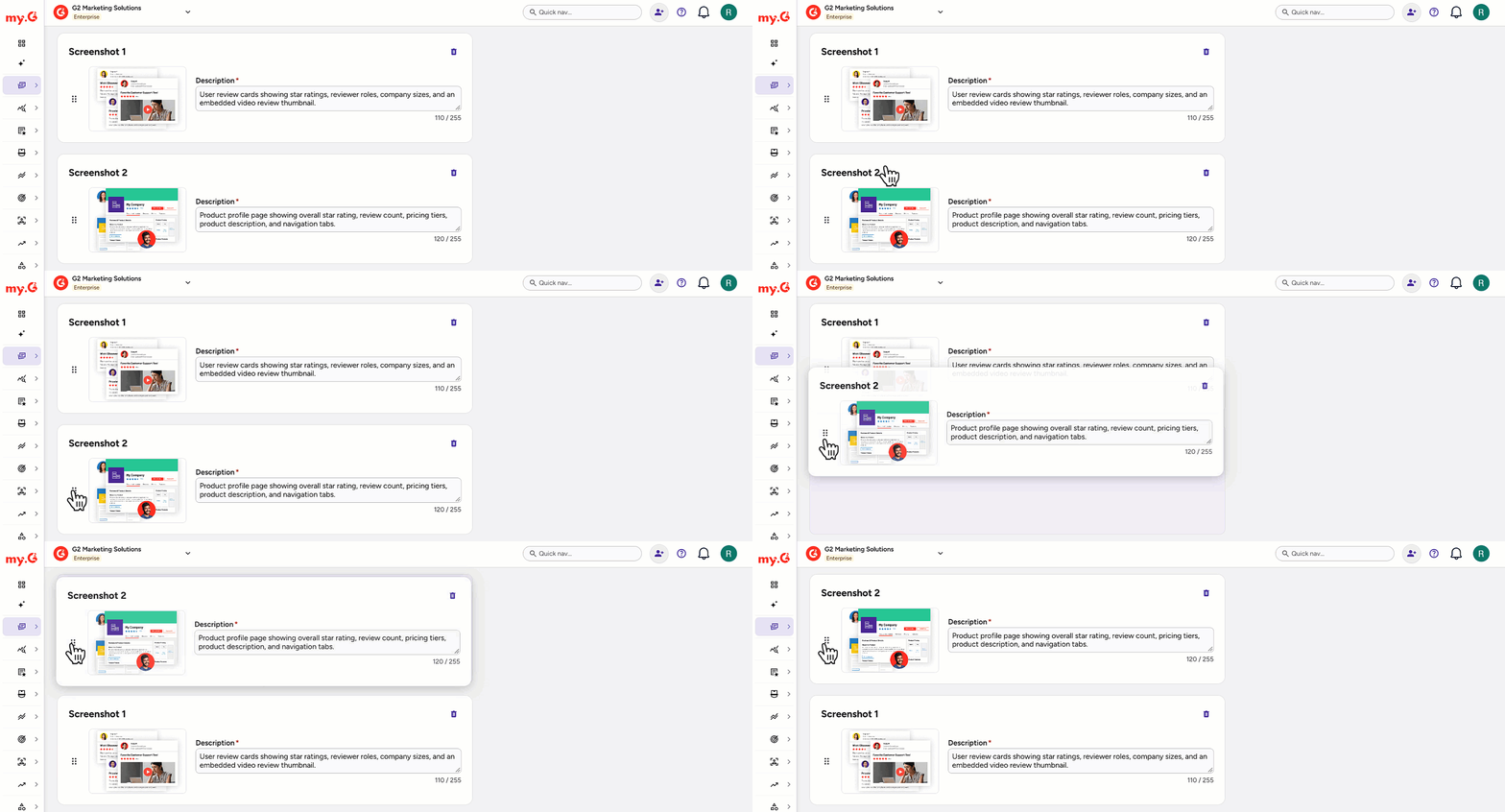
To delete a screenshot, select the trash icon for the image.
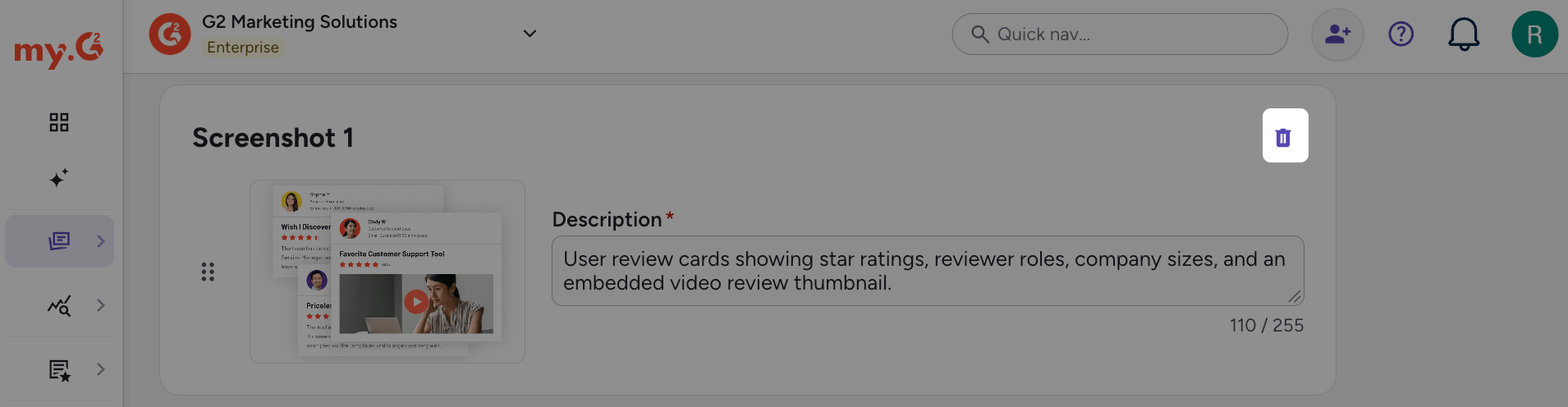
Category screenshots
On Capterra, use the Category Screenshots section to customize your screenshots for a specific category.
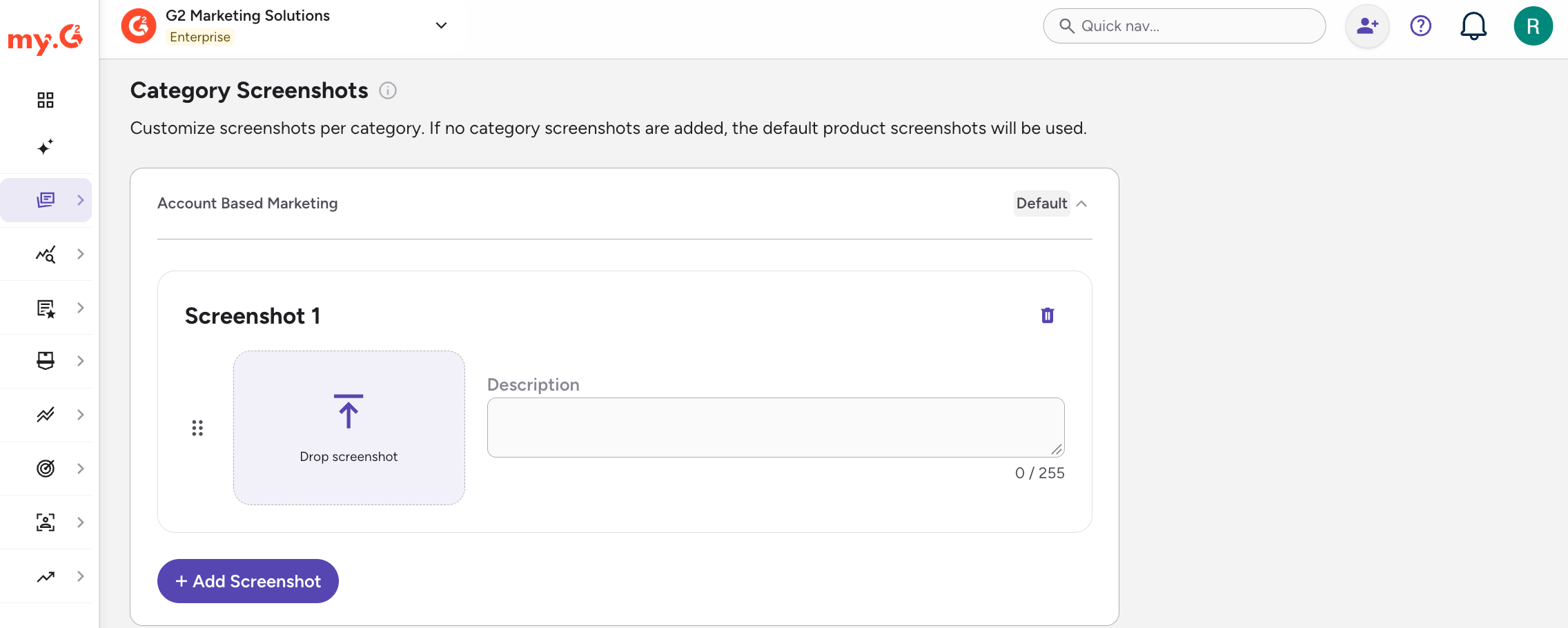
If you don't add category screenshots, G2 uses your default product screenshots.