The Downloads tab enables you to upload downloadable content to your G2 profile to help buyers understand your product.
Downloads are available on G2 profiles only. Capterra, Software Advice, and GetApp profiles don't have a Downloads tab.
Basics of Downloads
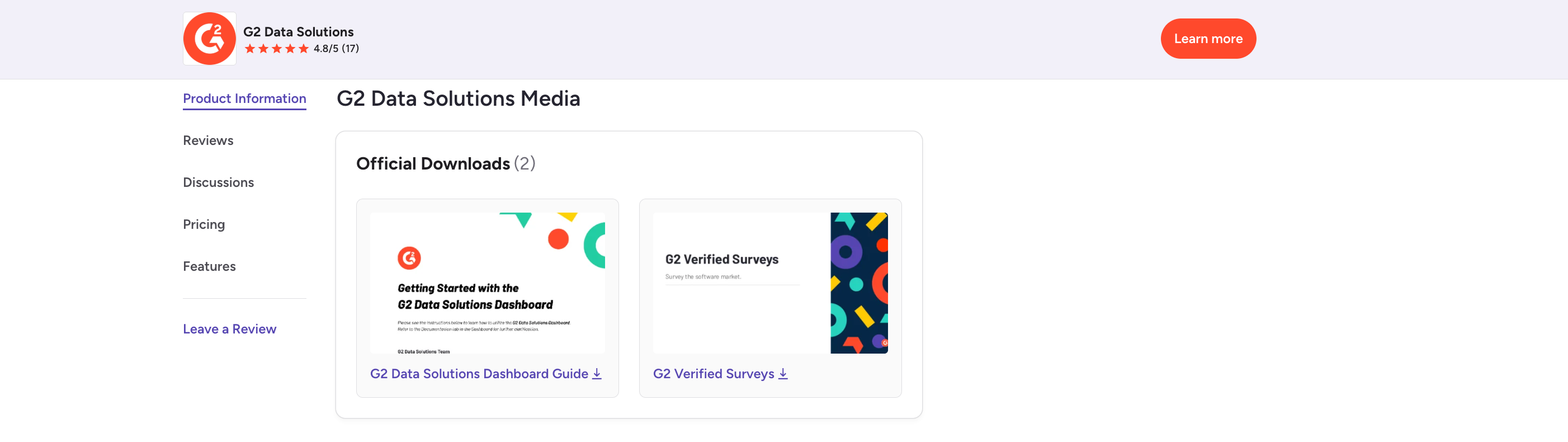
Where downloads appear on your profile
Downloads are displayed in the G2 Marketing Solutions Media section of your G2 profile.
G2 recommends uploading your Complete Pricing List to Listings > Manage Listings > Cross-Marketplaces > Packages & Pricing in my.G2 instead of providing a download in this section.
For more information about uploading your pricing list, refer to the Pricing & Packaging documentation.
Downloads are gated by default. When a buyer selects a download, G2 prompts them to complete your lead form. Buyers only need to complete the form once to access all of your gated downloads.
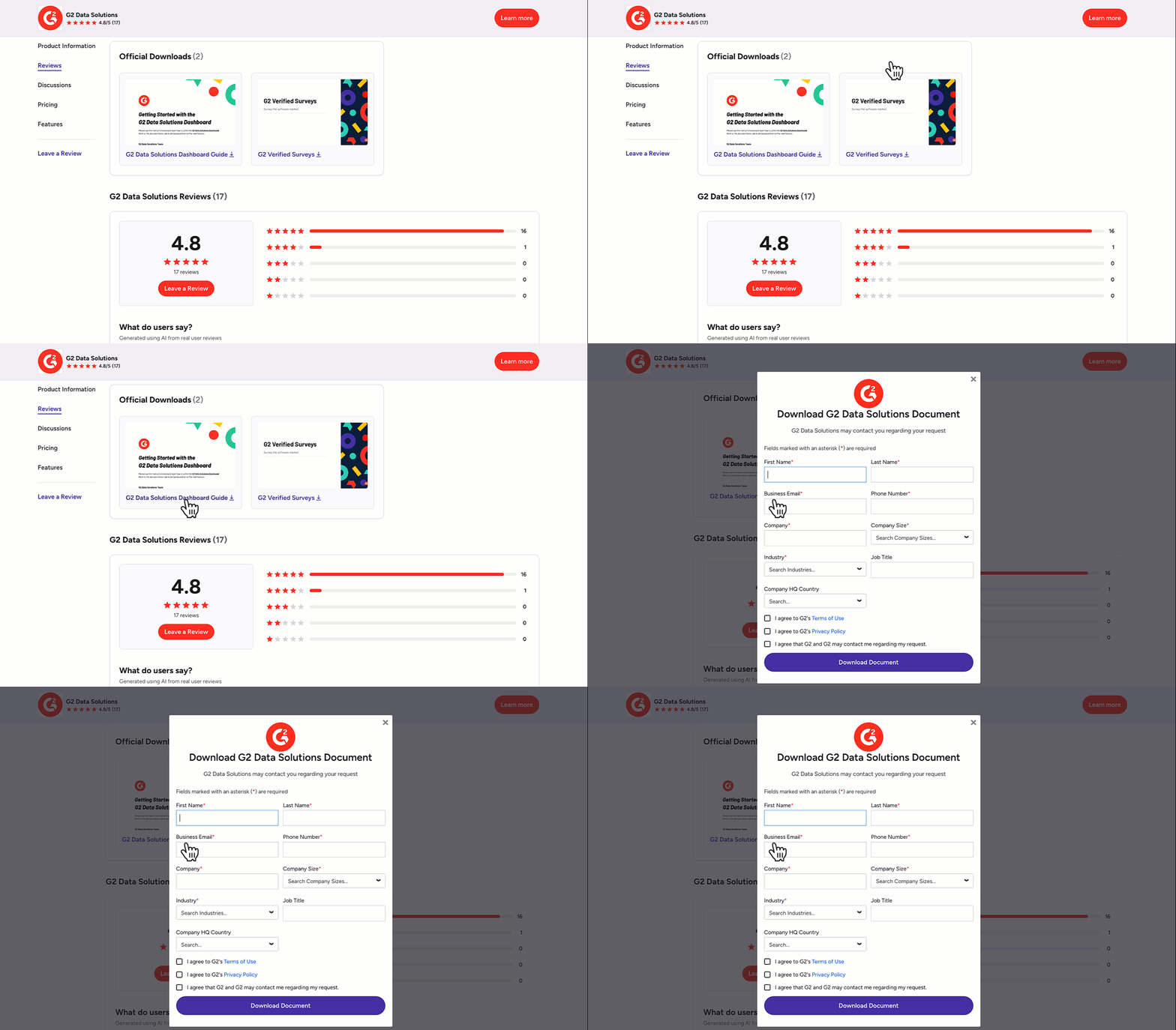
For more information on customizing your G2 lead form, refer to the Leads documentation.
Managing downloads in my.G2
G2 recommends uploading files that do not include proprietary product details or sensitive customer information.
Your organization is responsible for any downloads that are featured on your product profile.
To add downloads to your G2 profile:
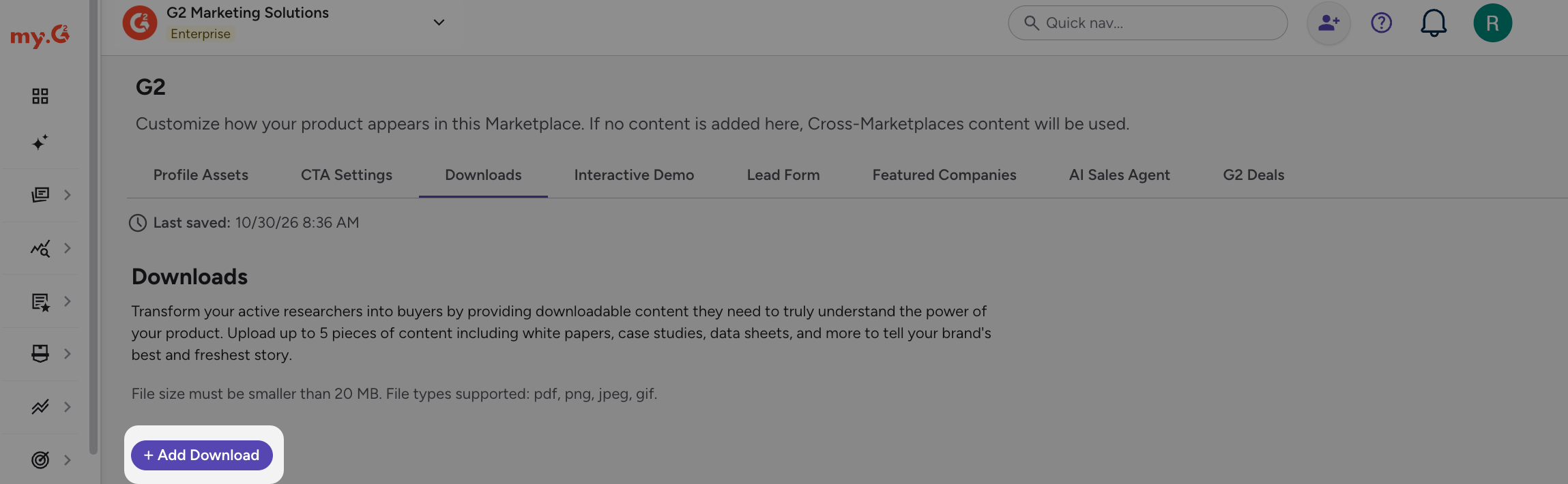
- Go to my.G2, then select Listings > Manage Listings > G2 > Downloads.
- Select + Add Download.
- Choose a supported file from your local machine.
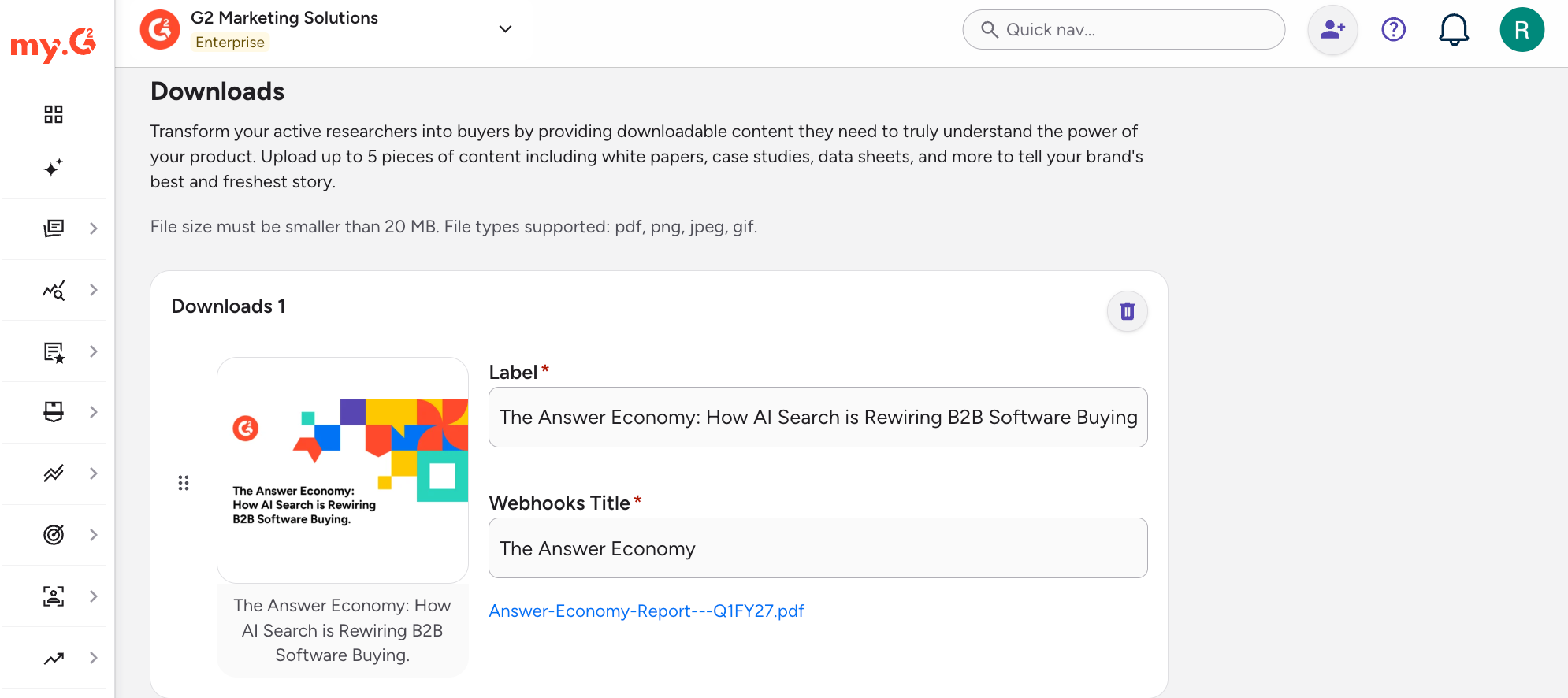
- Enter a Label and Webhooks Title for the file.
The webhooks title is used as the entry for the {document_title} field if you choose to deliver your leads data to a third-party tool.
For more information, refer to the Lead webhooks documentation
You can upload up to five downloads. Each file must be smaller than 20 MB and be one of the following supported file types: PDF, JPG, PNG, or GIF.
It can take up to 15 minutes for downloads to appear on your product profile.
You can use the drag handles to rearrange the order downloads appear.
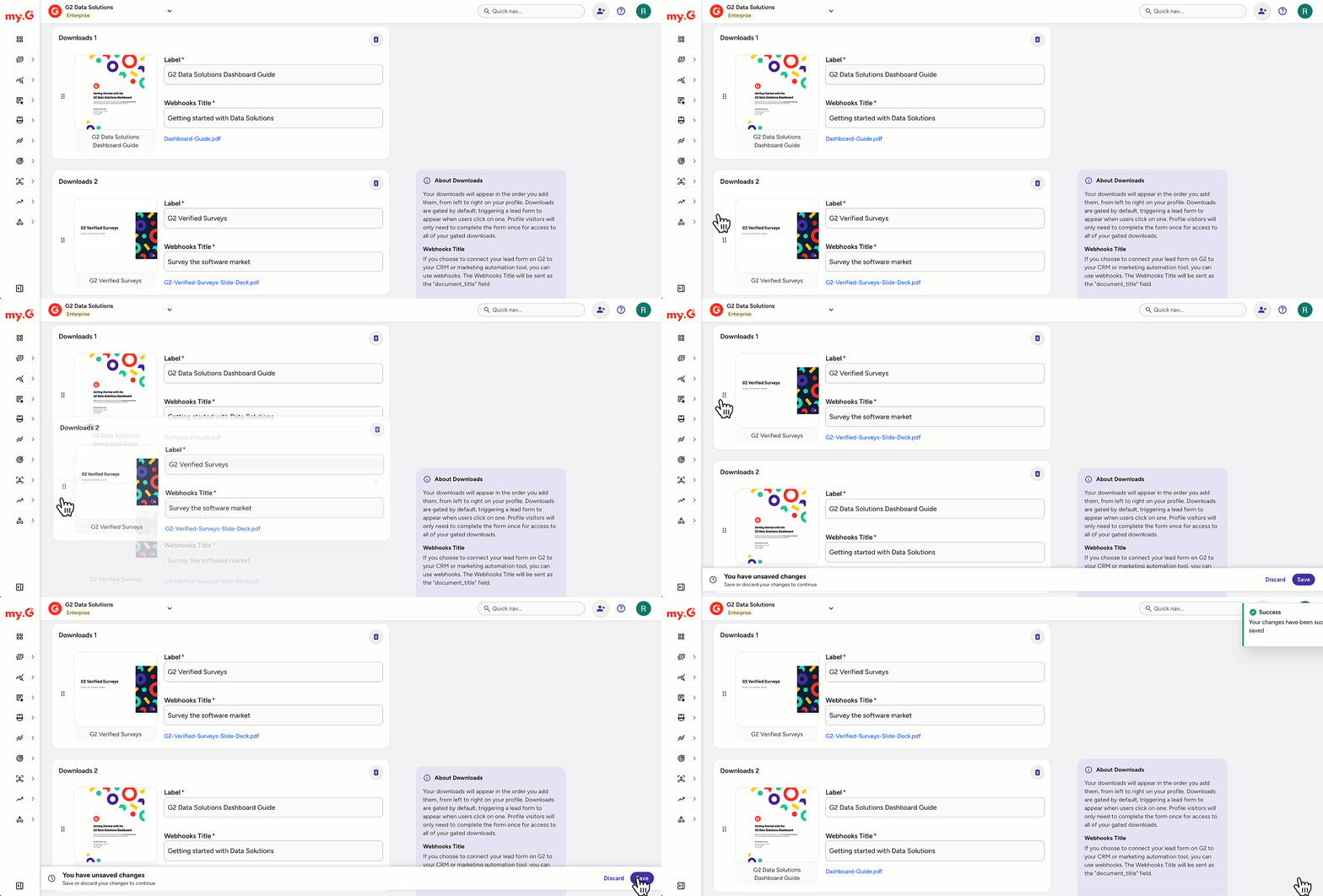
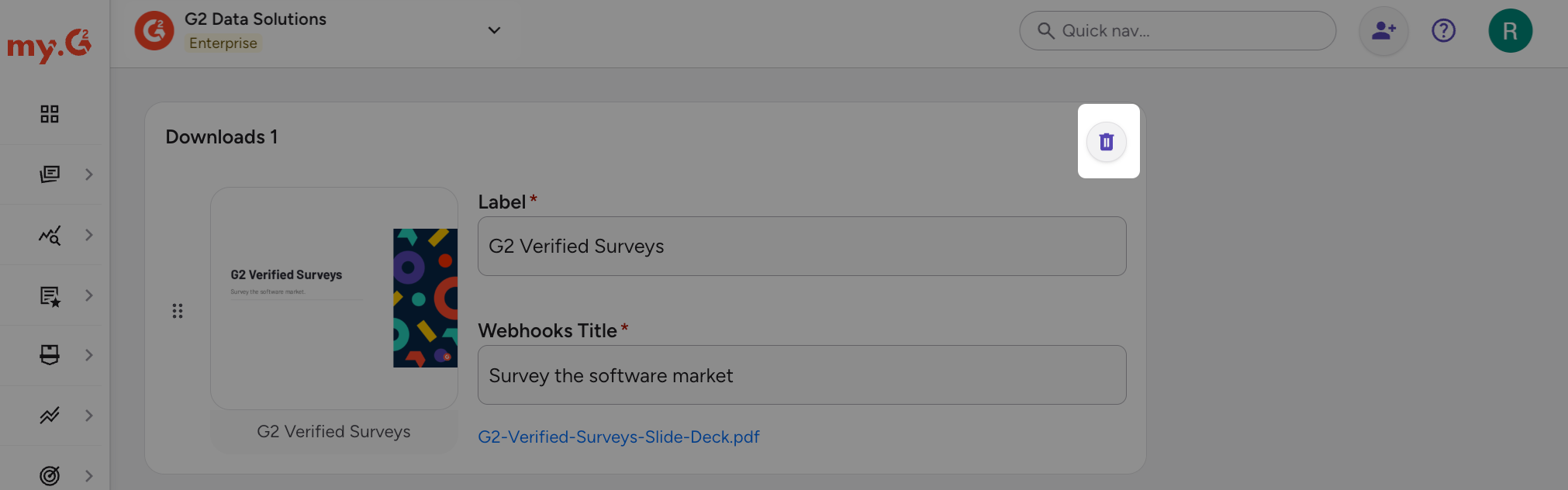
To delete a download, select the trash icon for the file.
You can also select Edit in G2.com, hover over the Official Downloads section, then select Edit Downloads.