G2's Review Collection widgets, Review Us Button, Review Prompt, and Banner Widgets, enable you to use your website, landing pages, sidebars, and email signatures to generate and showcase your G2 reviews.
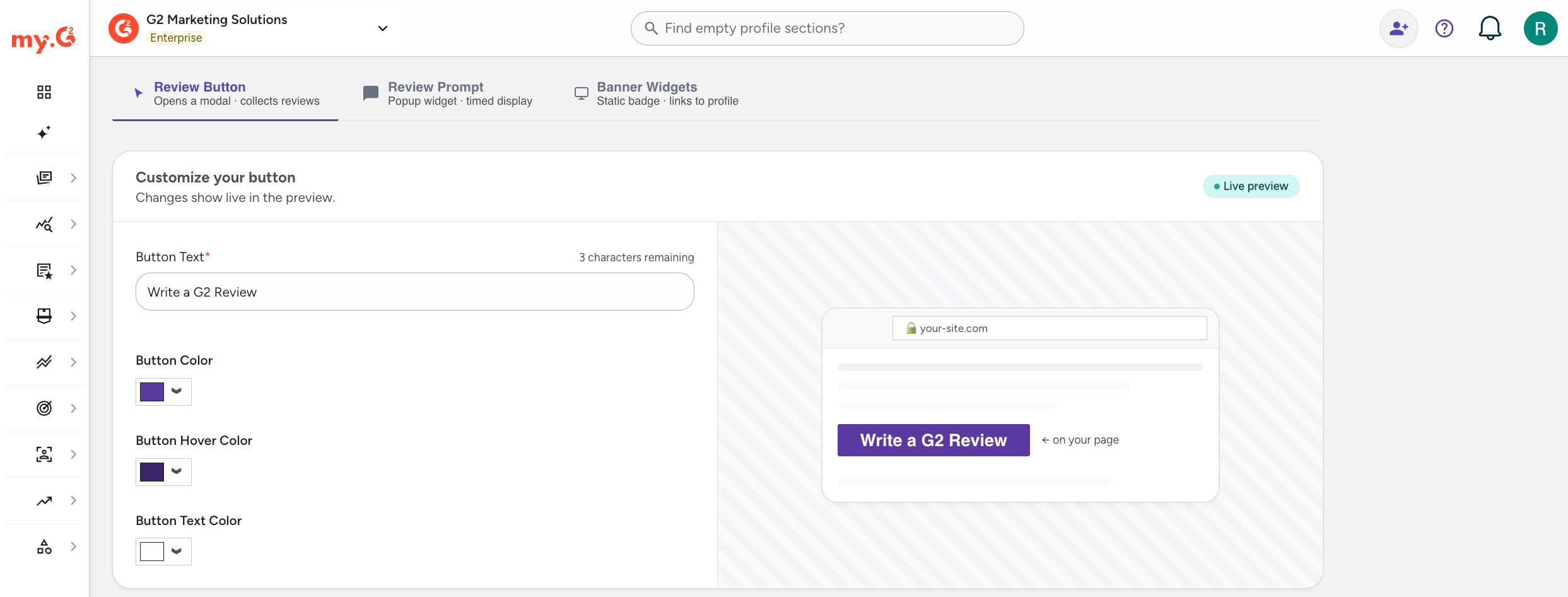
To access Review Collection widgets, go to my.G2, then select Reviews > Collect Reviews. In the 'Review Us' Buttons panel, select See Options.
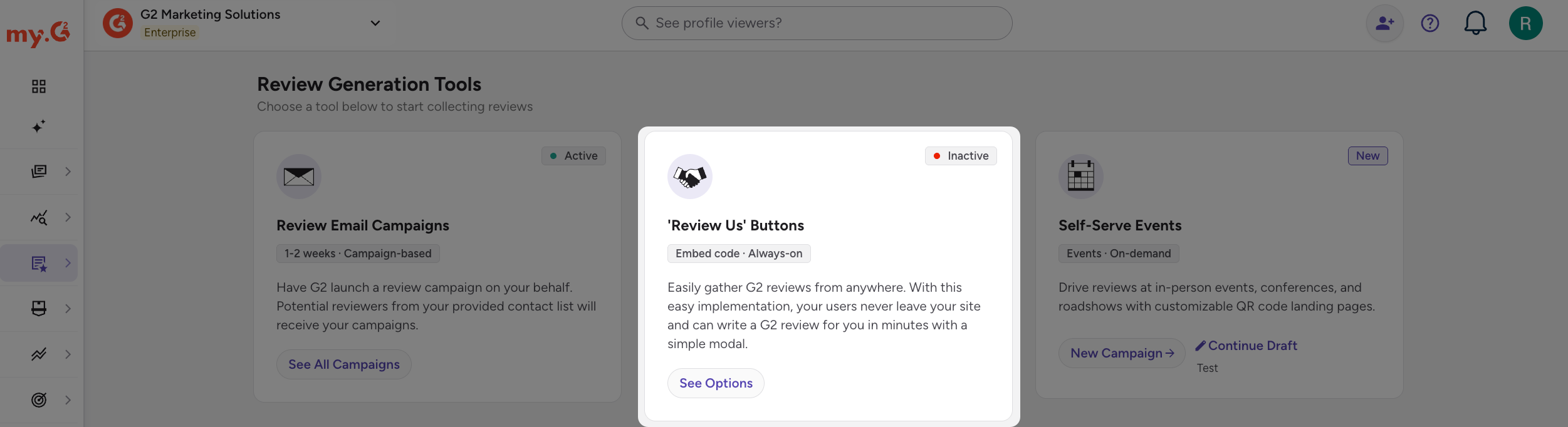
Review Us Button
Review Us Button enables you to easily capture reviewer interest from your website or landing page by adding a customizable button that triggers your G2 review form in a pop-up overlay.

You can demo this widget by selecting Write a Review below.
Basics of Review Us Button
Reviewer authentication
To improve conversion rates, Review Us Button enables your users to defer login until they have completed their review.

Upon submission of their review, users will be prompted to log in or create their G2 account.

To ensure reviewer authenticity, reviews will not enter G2’s moderation queue until the reviewer creates or logs into their G2 account.
Incentivization and segmentation
Per the G2 Community Guidelines, your organization cannot segment reviewers to solicit only positive reviews.
Only non-incentivized reviews are available for submission via Review Us Button. Gift cards or other incentives can not be attached to this process.
Tracking reviews generated via Review Us Button
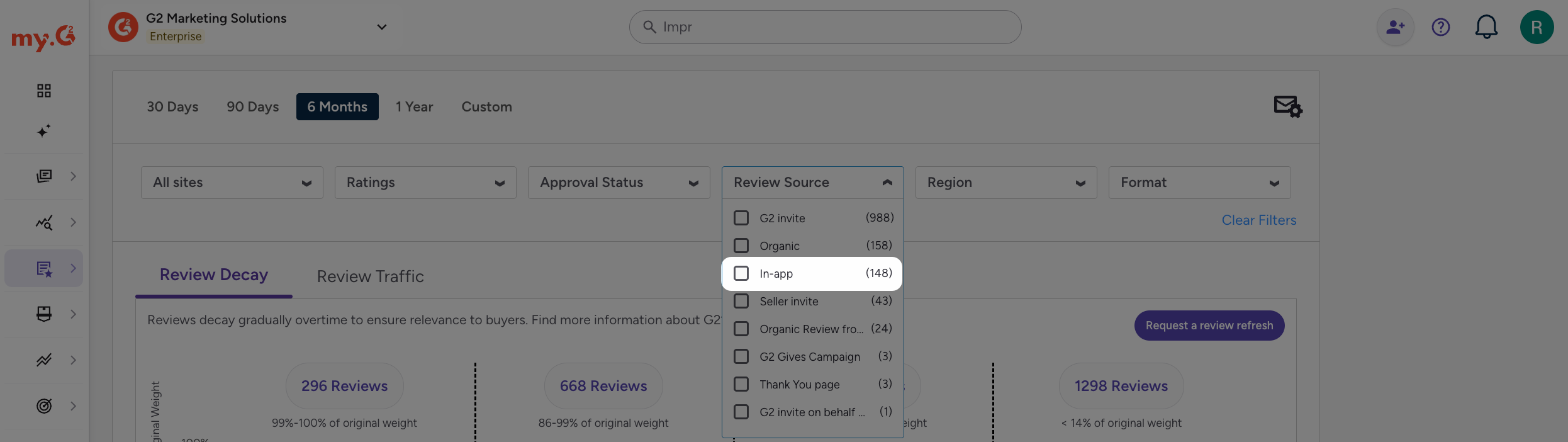
To monitor the success of Review Us Button in generating G2 reviews:
- Go to my.G2, then select Reviews > Review Activity.
- From the Review Source drop-down, select In-app.
Implementation
Review Us Button can be embedded directly in your website’s source code, or any CMS page that supports HTML and JavaScript.
Review Us Button is a plug-and-play, low-code solution. You do not need to have web development experience to implement this widget.
The following instructions provide a high-level overview of implementing Review Us Button, which should be adapted to your particular CMS or website.
1. Customize button in my.G2
To access Review Us Button, go to my.G2, then select Reviews > Collect Reviews.
In the 'Review Us' Buttons panel, select See Options, then select the Review Button tab.
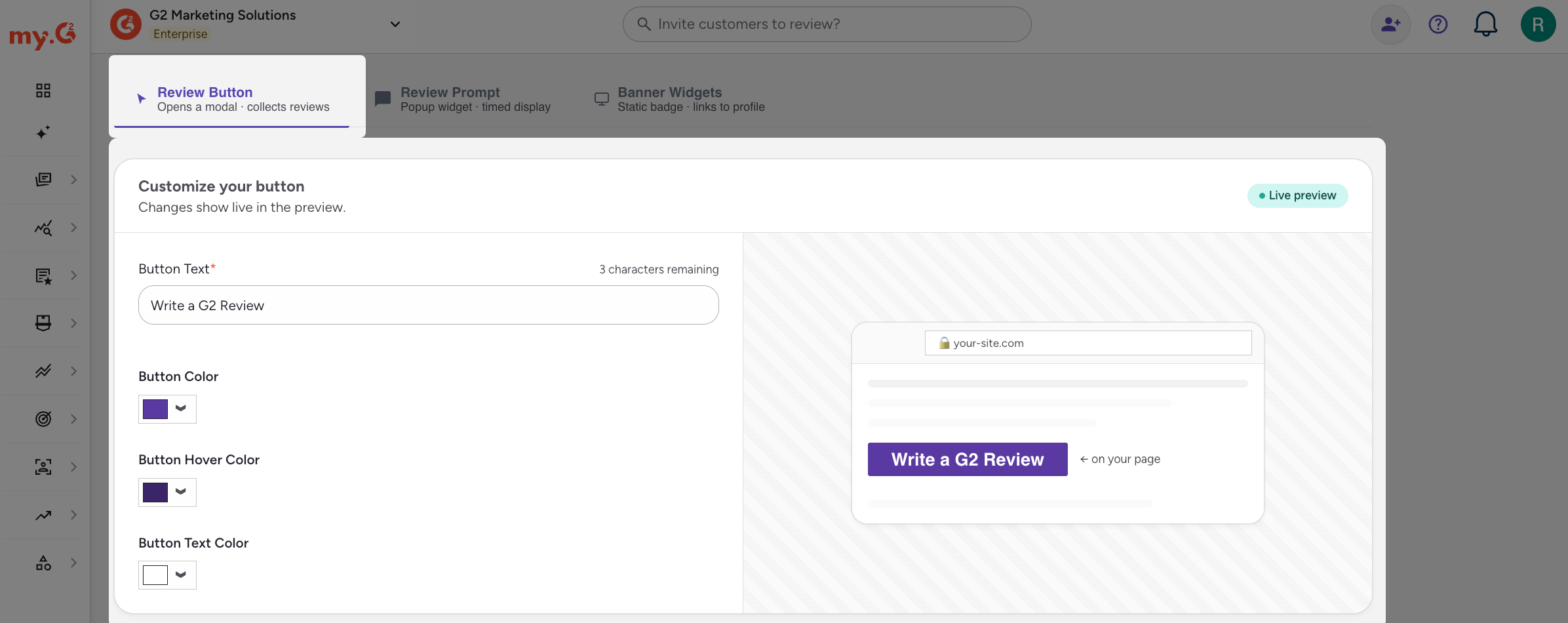
Use Button Text, Button Color, Button Hover Color, and Button Text Color to match your button to your product’s branding.
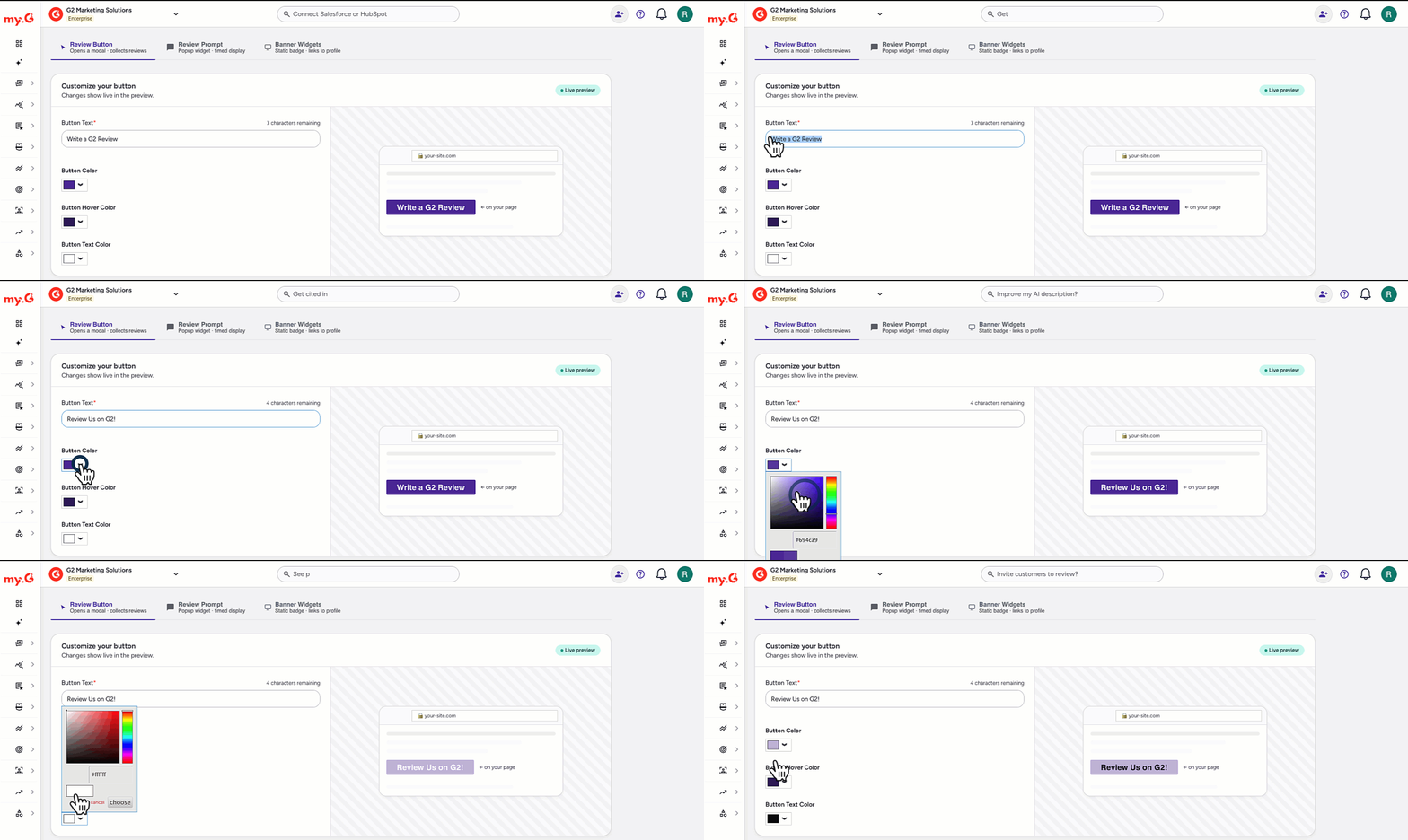
Button styles are tied to your embed code. If you update your styles, you must re-embed the script code in the Step 2: Add the following to the head of your document section.
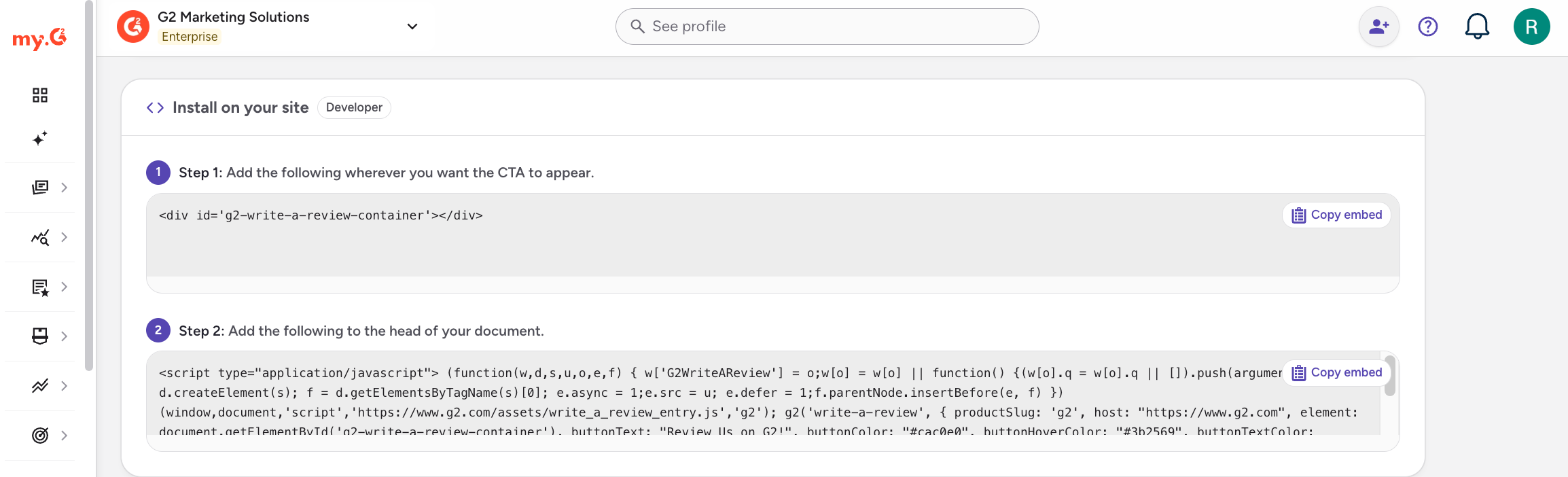
2. Access embed codes in my.G2
Your embed codes are in the Install on your site section. Keep this tab open for the remainder of the implementation process.
3. Add the CTA code to your website or landing pages
This step uses the code in the Step 1: Add the following wherever you want the CTA to appear section.
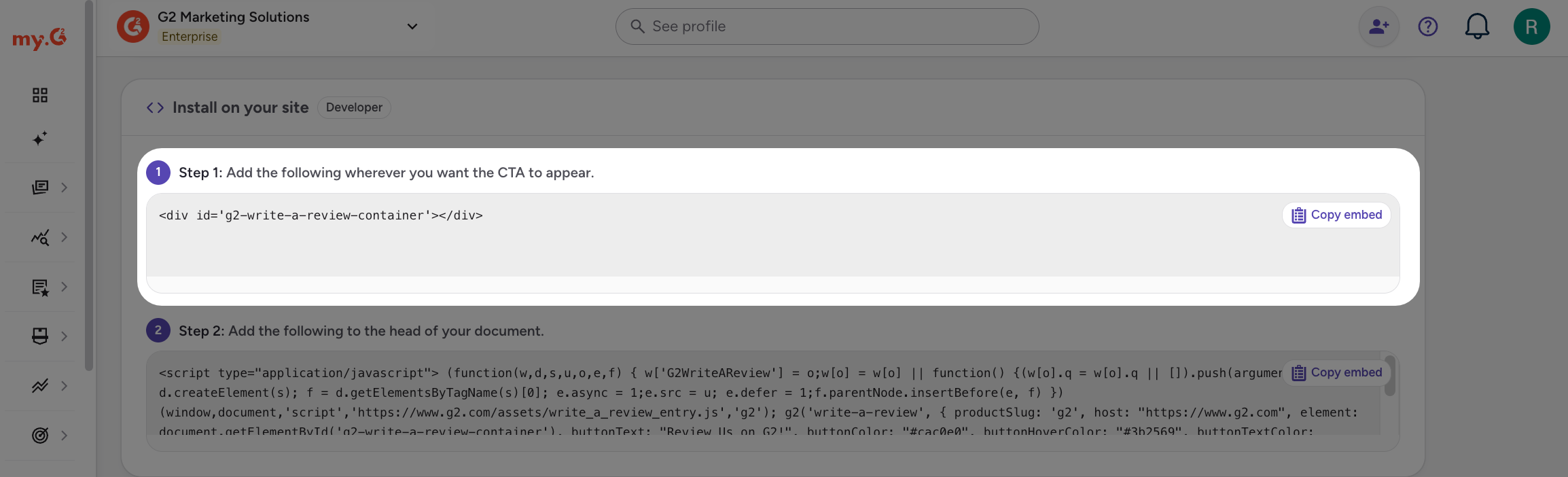
Paste this code directly into the corresponding page(s) of your CMS where you want your review button to appear.

This code is just a placeholder and does not contain any content. Nothing will appear in your CMS preview after adding this code.
You can only add one Review Us Button CTA per page on your website.
4. Add the remaining script code to your CMS
This step uses the code in the Step 2: Add the following to the head of your document section.
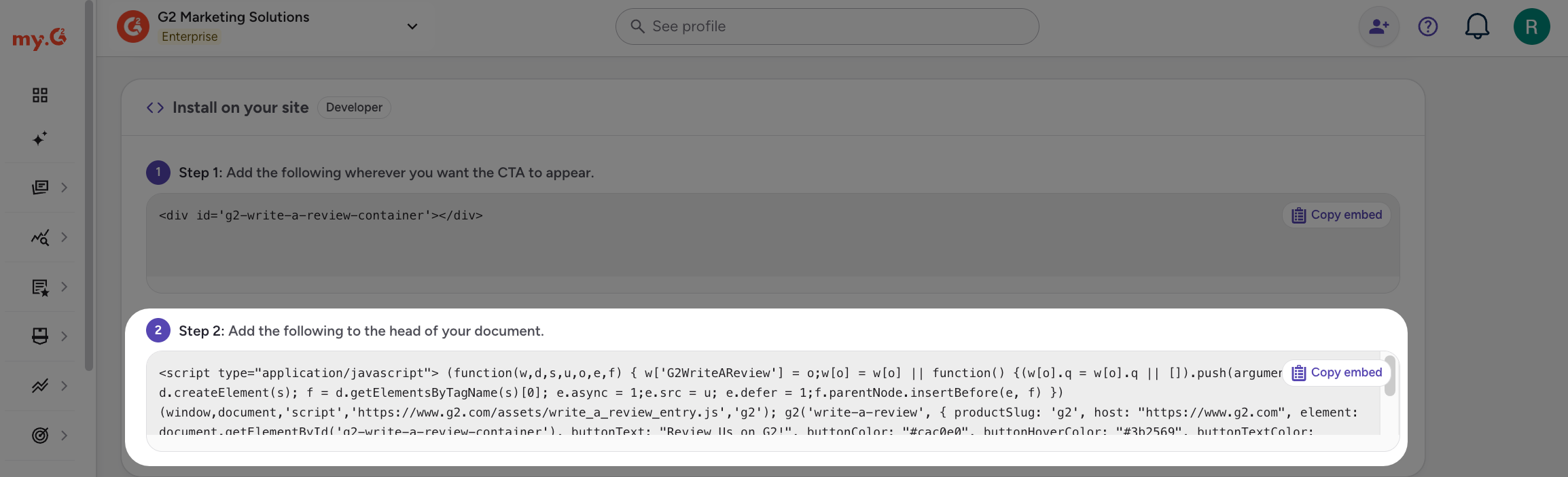
Paste this code directly into the dedicated portion of your CMS that accepts custom code. If possible, you should add it to the head (between the <head> and </head> tags) of the page.

If your CMS does not support adding HTML to the head of your page, you can also try embedding this code in the same place as the CTA code from the previous step.
Alternatively, if you use Google Tag Manager, you can create a Custom HTML tag to insert this script.

5. Publish your changes
Once your embed codes have been added to the corresponding locations, publish your changes, then test out your button!
Review Prompt
Review Prompt displays a popup on your site that invites visitors to write a G2 review. The popup appears after the number of seconds you set.
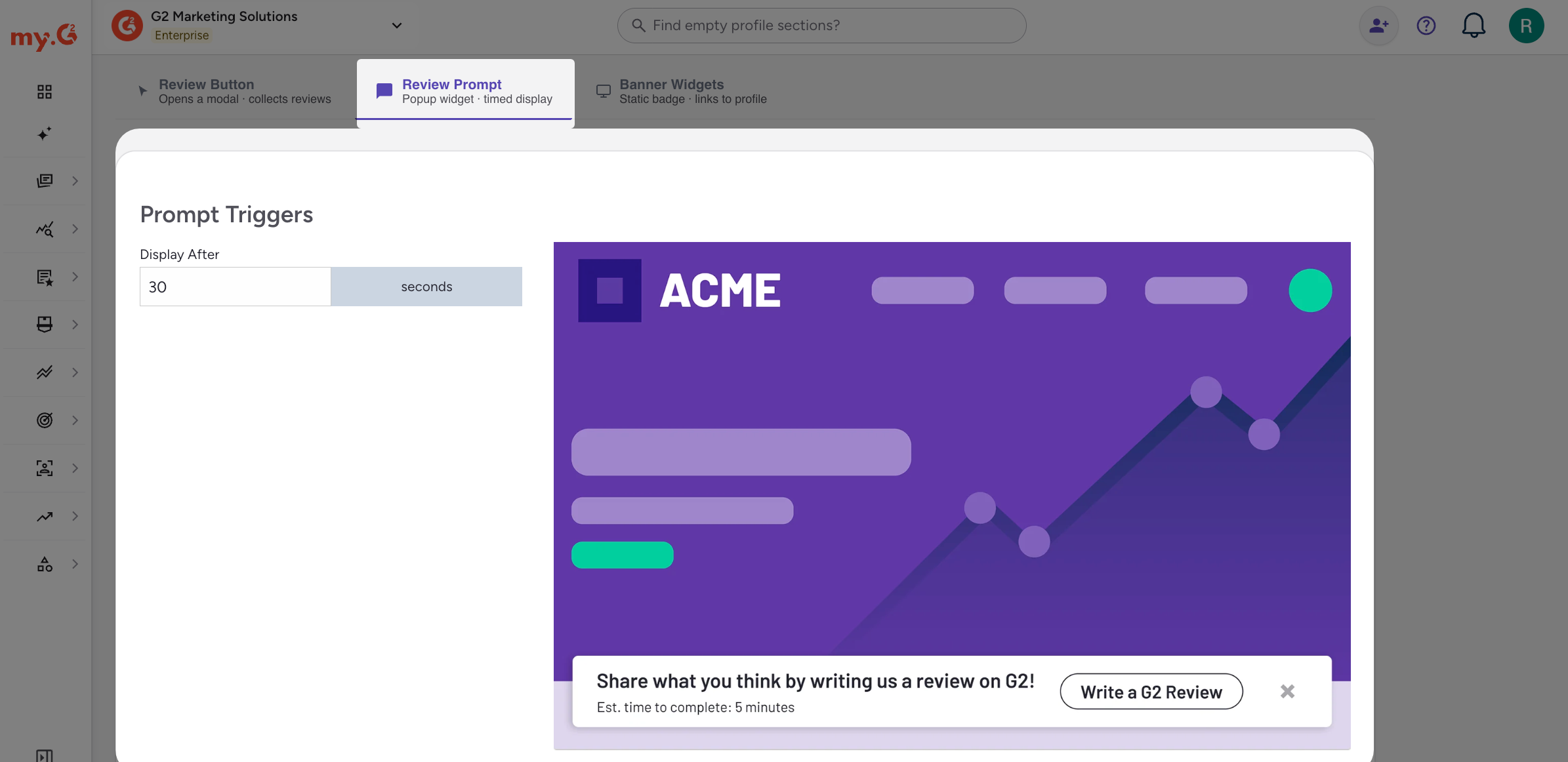
To set up a review prompt:
-
Go to my.G2, then select Reviews > Collect Reviews. In the 'Review Us' Buttons panel, select See Options, then select the Review Prompt tab.
-
Under Prompt Triggers, enter the number of seconds in Display After.
-
Under Implementation, choose how to add the prompt to your site:
- Use AI to implement: select Copy embed under AI implementation prompt, then paste the prompt into your AI coding assistant to implement the review popup in your codebase.
- Invite a Developer: enter your developer's email address, then select Send Invite. G2 sends them instructions.
- Embed code: select Copy embed under Embed code for popup widget, then paste the code in the head of the pages where you want the review prompt to appear.
Banner Widgets
Banner Widgets enable you to use your website, landing pages, sidebars, and email signatures to generate and showcase your G2 reviews. Similar to Star Rating widget, Banner Widgets can also supplement your SEO initiatives and increase your click-through rate (CTR) by displaying the G2 star rating for your products in search engine results.
Banners are static. For an in-page modal experience, use Review Us Button.
To set up a banner:
-
Go to my.G2, then select Reviews > Collect Reviews. In the 'Review Us' Buttons panel, select See Options, then select the Banner Widgets tab.
-
Under Banner style, select Gradient Blue, Dark, or Light. The live preview shows your selection.
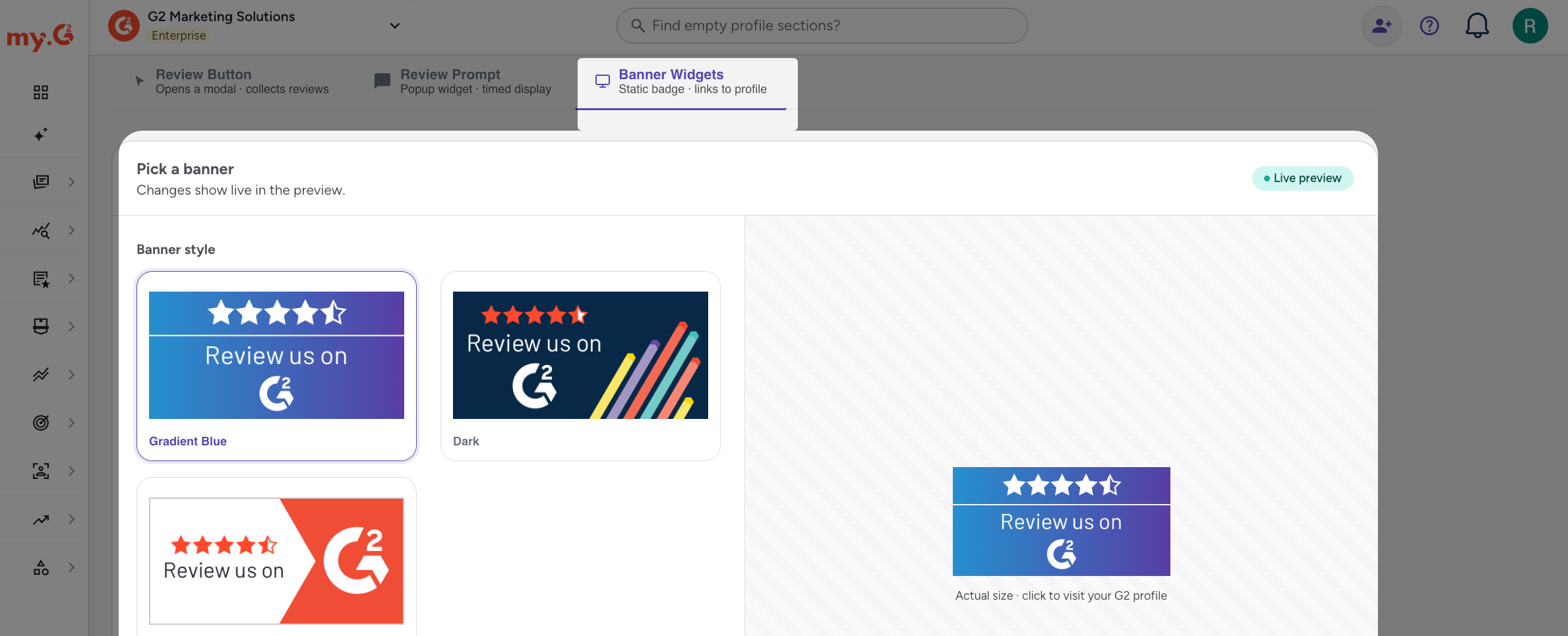
-
Optionally, use the Show star rating on Google search results toggle to add rich snippet markup to any page that includes the embed.
-
Under Install on your site, select Copy embed, then paste the code anywhere on your site.
For more information on using Banner Widgets, refer to the Star Rating widget documentation.