Review Campaign Dashboard enables you to track review performance, monitor active campaigns, and create new campaigns.
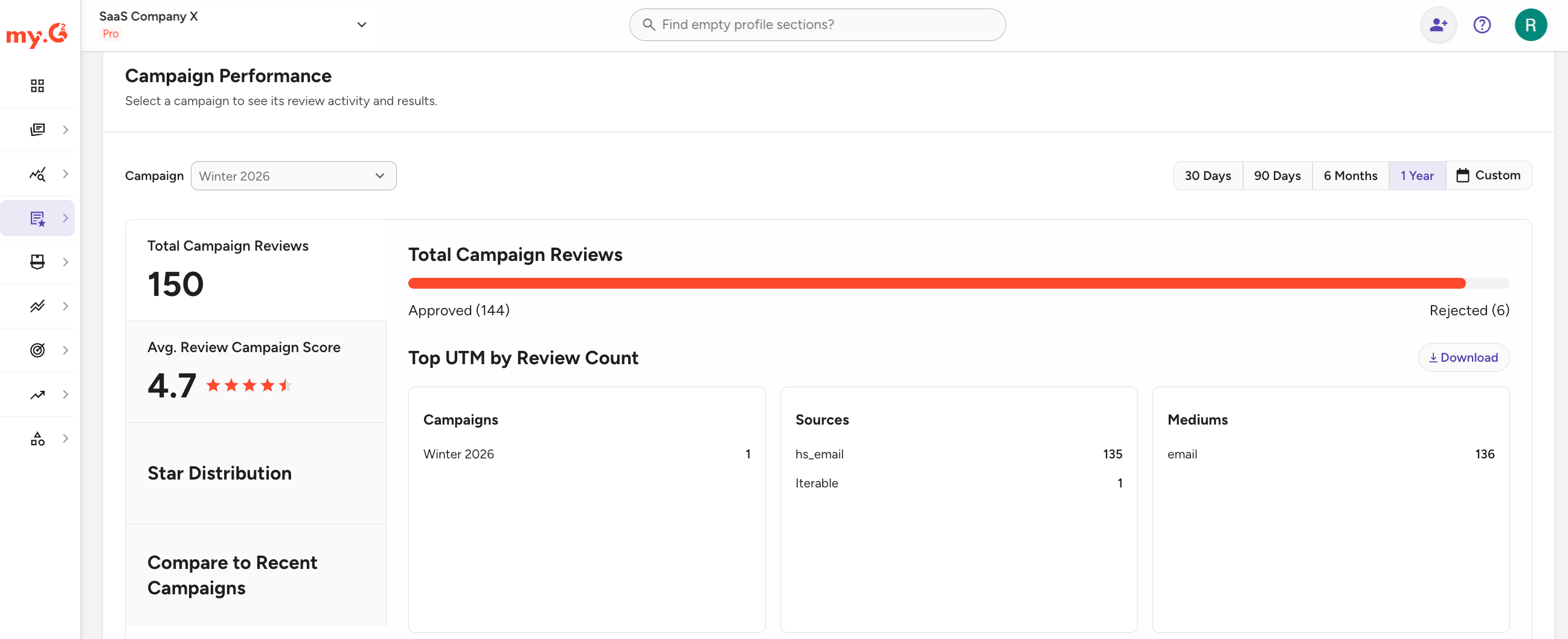
You can track both G2-managed and self-managed review campaigns from this page.
To access the Campaign Dashboard, go to my.G2, then select Reviews > Campaigns.
Basics of Review Campaign Dashboard
Creating and managing campaigns
You can create a new review campaign directly from the dashboard by selecting Create Campaign.
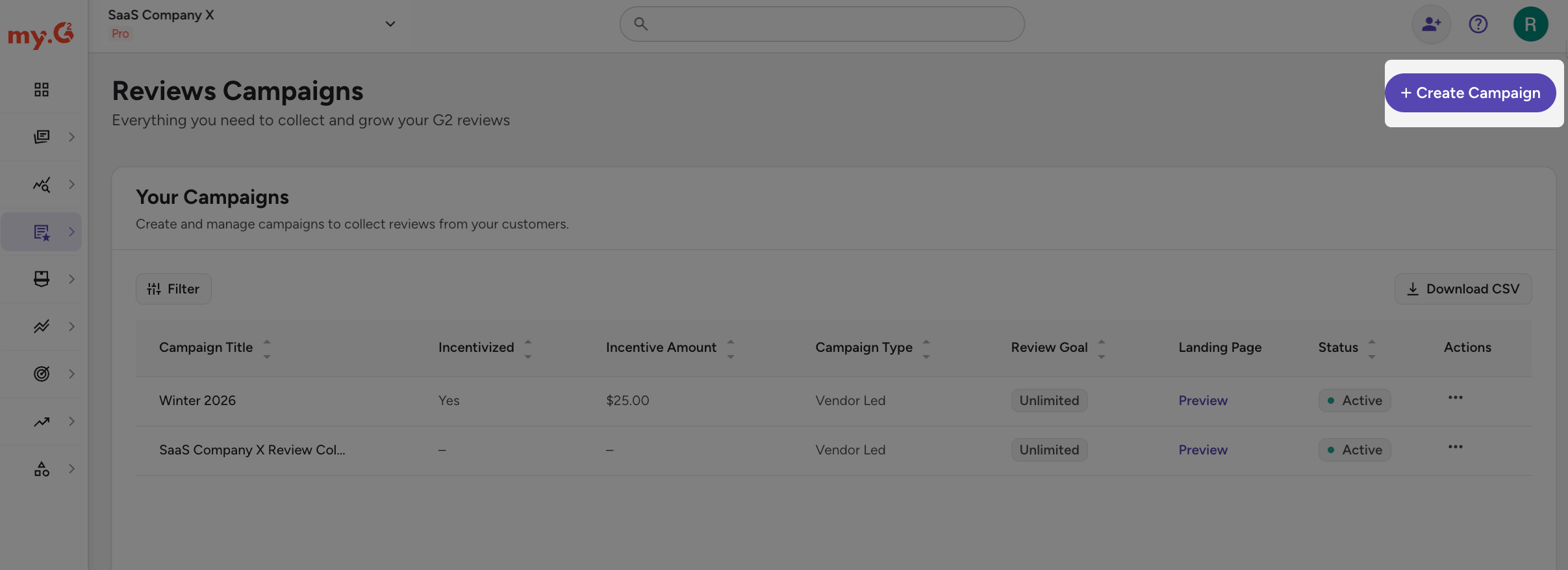
For more details about creating review campaigns, refer to the Self-Service Review Campaigns documentation.
Use the Your Campaigns table to monitor and update campaigns. To narrow the list, select Filter, choose a Status (All, Active, or Inactive) or an Incentive Start Date range, then select Apply Filters.

The table includes the following columns:
| Column | Description |
|---|---|
| Campaign Title | Name of the campaign |
| Incentivized | Indicates whether incentives are enabled |
| Incentive Amount | Reward value per review |
| Campaign Type | Campaign type, such as Vendor Led, Email Campaign, Self-Serve Event, Review Refresh, or In-App |
| Review Goal | Controls how long a campaign runs and how many reviews it collects. Fixed goals stop after reaching the target number of approved reviews. Unlimited goals continue running until manually stopped, and charges continue based on your selected payment method. |
| Landing Page | Link to preview the campaign |
| Status | Current campaign state: Active, Inactive, or Ended |
| Actions | Select the three-dot menu to see the available actions. Active campaigns offer Edit, Clone, and Delete. Inactive campaigns offer Checkout and Delete. Ended campaigns show an Edit link. |
Review Rally campaigns have an arrow next to the campaign title. Select it to see the campaign's leaderboard.

Campaign analytics
To get started, go to the Campaign Performance section. Select a campaign from the Campaign dropdown, then select a time interval: 30 Days, 90 Days, 6 Months, 1 Year, or Custom.
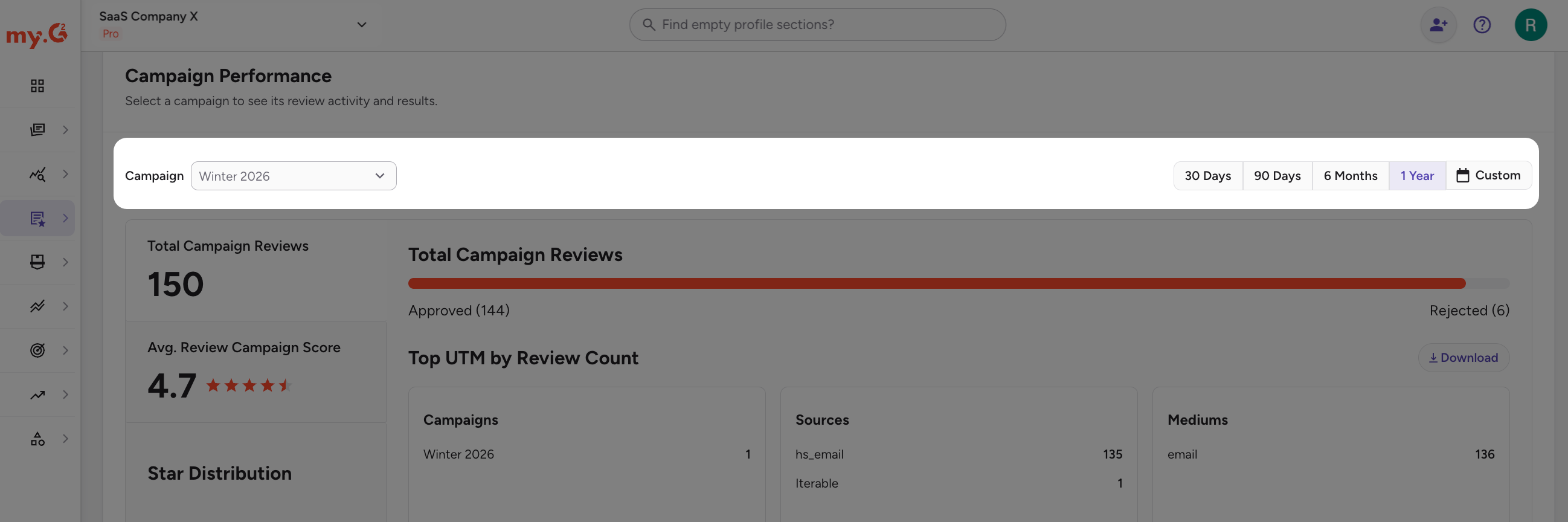
The section shows these metrics for the selected campaign:
- Total Campaign Reviews
- Avg. Review Campaign Score
- Star Distribution
Use the Compare to Recent Campaigns table to see each recent campaign's start date, submitted reviews, approved reviews, and star rating.
If no data appears, verify that the selected campaign has activity within the chosen date range.
Managing campaign funds
Fund incentivized campaigns with a payment method you choose during campaign creation. You can also add credits to your account in advance.
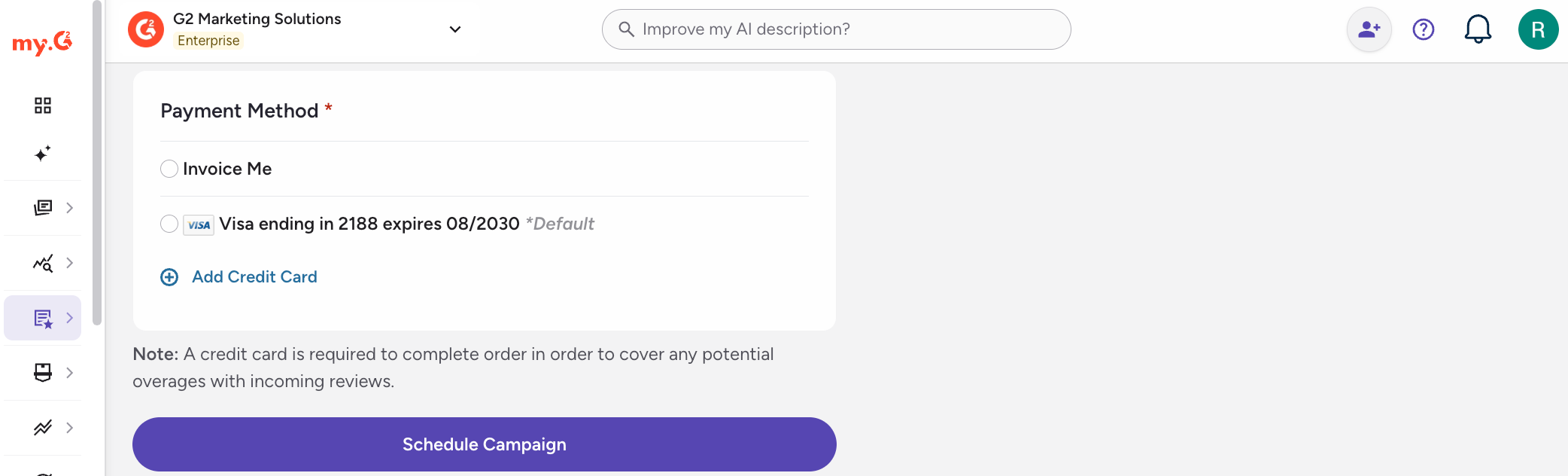
When creating a campaign, select a payment method:
- Invoice Me
- A saved credit card, or Add Credit Card to add a new one
You need a credit card on file before you can select Invoice Me. If you select Invoice Me, the campaign cost is billed to your monthly invoice. If you select a credit card, the charge is processed immediately.
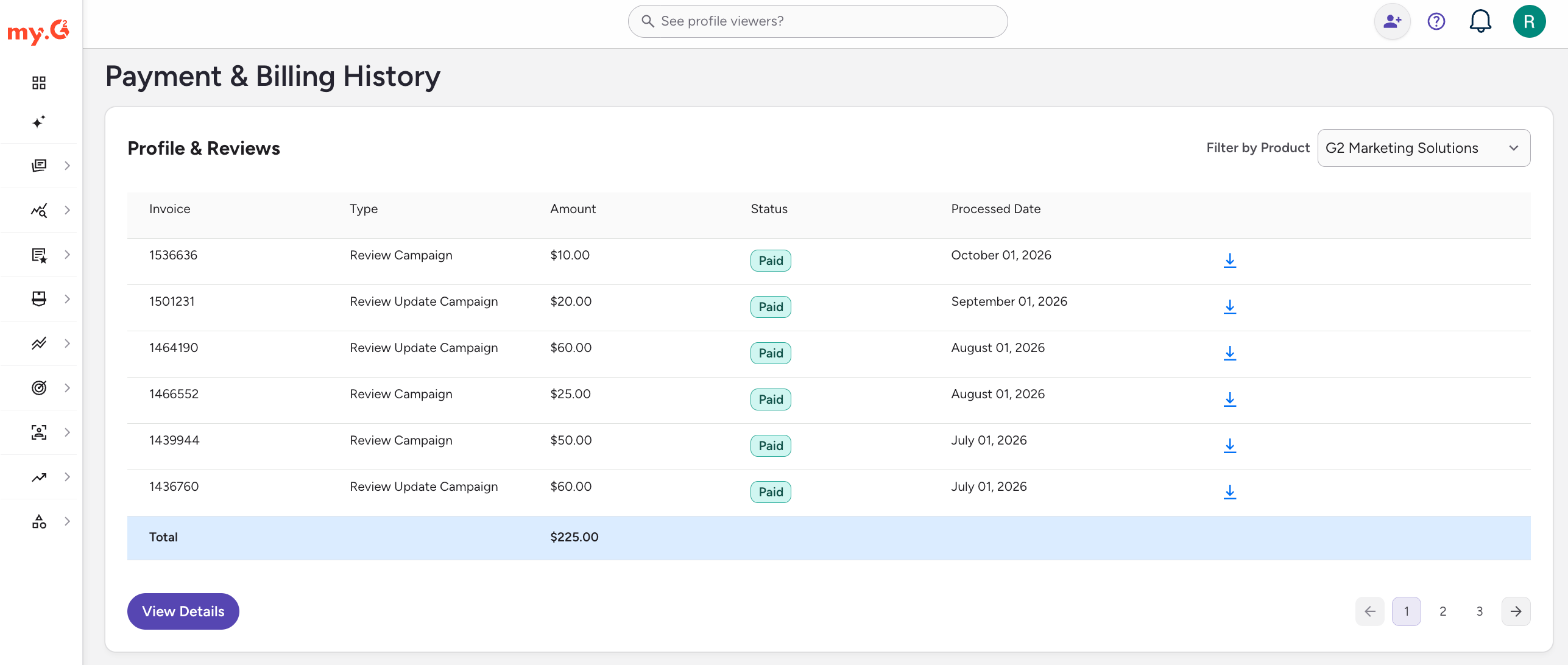
Credits are a prepaid balance you add in advance to pay for gift card incentives. You can allocate credits to your review campaigns to reward reviewers. You can purchase credits at any time, and your credit balances appear on the Profile & Reviews page.
To purchase credits:
-
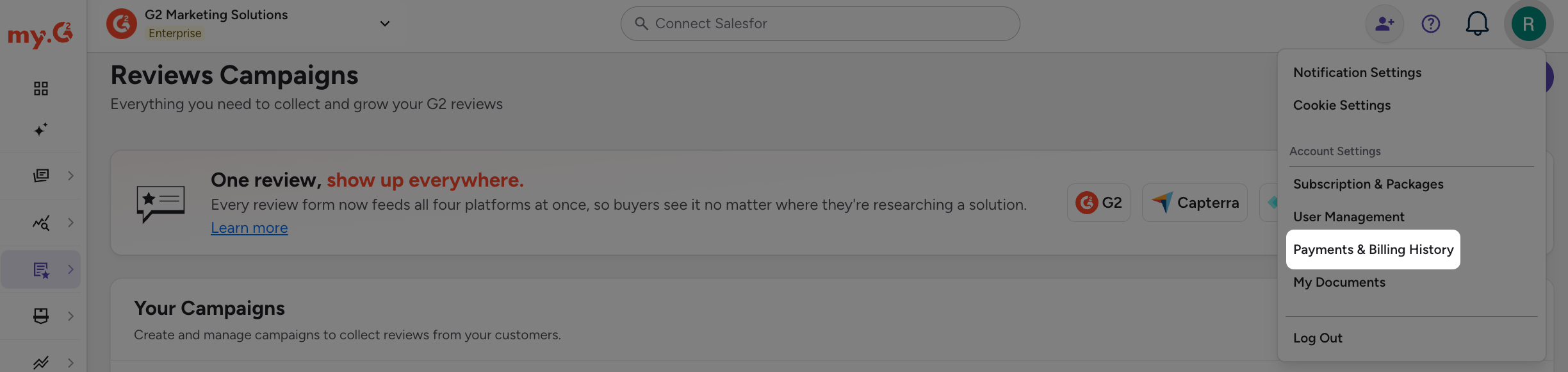
Go to my.G2, then select your avatar in the upper-right corner > Payments & Billing History.
-
In the Profile & Reviews panel, select View Details.
-
In the Add Credits panel, select Add Credits.

-
Under Payment Method, select a saved card, or select Add Credit Card to add a new one.
-
Enter an Amount from $10 to $5,000.
-
Select Purchase Now.
The amount is added to your credit balance. You can make up to three transactions per day.
G2 accepts the following payment methods:
Visa, Mastercard, American Express, Discover, JCB, Diners, UnionPay
Payments are processed by a third party. G2 does not store payment information. To support PCI DSS compliance, G2 completes a PCI Self-Assessment Questionnaire (SAQ), available upon request.